
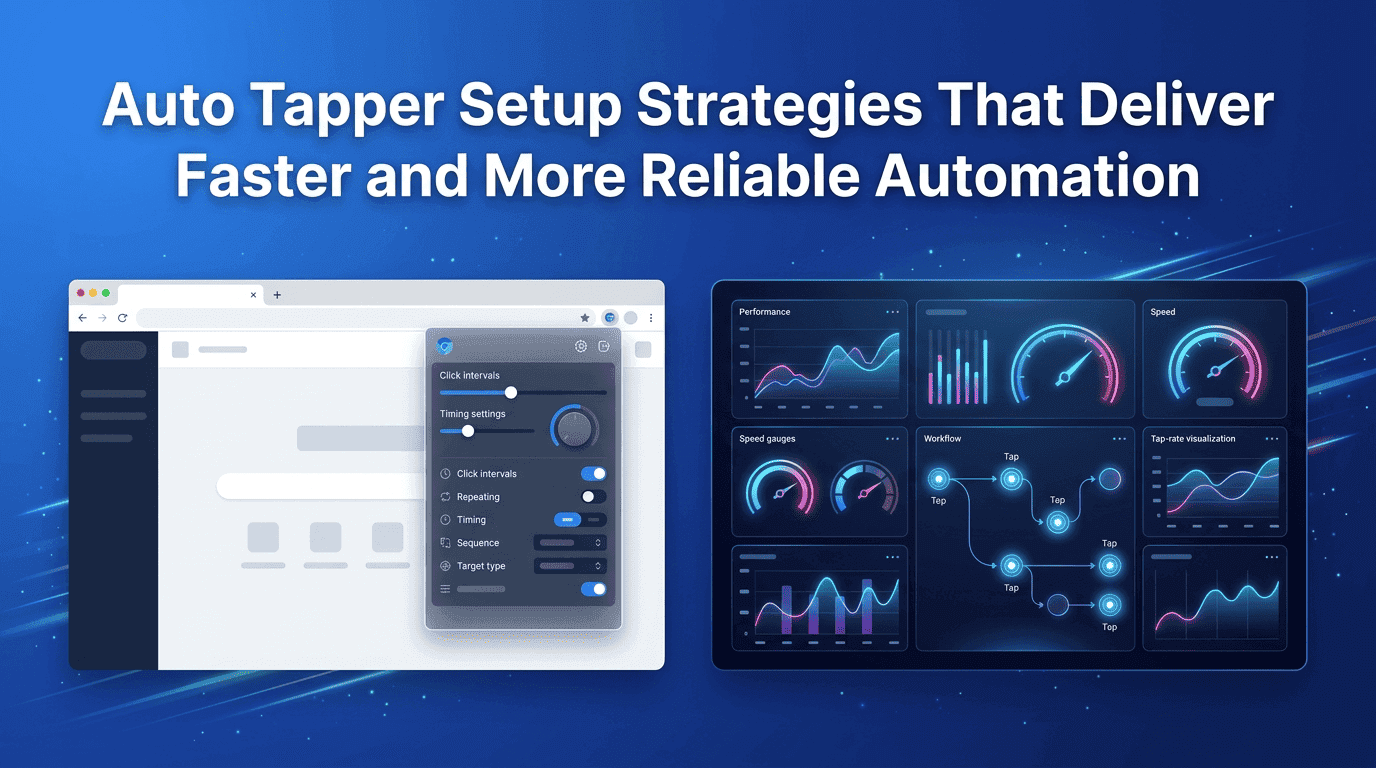
Auto Tapper Setup Strategies That Deliver Faster and More Reliable Automation
Achieve faster task completion by replacing manual taps with Auto Tapper.
Mobile devices have evolved into powerful tools for work, entertainment, communication, and business. Yet many everyday tasks still involve repetitive tapping, scrolling, or screen interactions that consume valuable time. Whether you’re repeatedly collecting rewards in a mobile game, testing an application, demonstrating software features, or managing repetitive workflows, manual tapping quickly becomes inefficient.
This is where Simple Auto Clicker provides a practical solution. By automating repetitive touch actions, users can focus on more meaningful activities while maintaining consistency across every interaction. Instead of endlessly repeating the same screen movements, automation allows smartphones and tablets to perform repetitive tasks with greater precision and stability.
Modern mobile automation is no longer limited to developers or technology professionals. Students, gamers, accessibility users, digital creators, and business professionals increasingly rely on intelligent tapping solutions to improve productivity without increasing workload. When configured correctly, auto clicker automatic tap technology becomes an efficient assistant rather than simply a speed tool.
This guide explains how professional users approach mobile automation, where it delivers the greatest value, and how thoughtful configuration produces better results than random rapid tapping.
Every smartphone user performs repetitive actions throughout the day. Opening identical menus, confirming notifications, refreshing applications, collecting rewards, or repeating testing sequences may seem insignificant individually, but together they consume considerable time.
Modern digital workflows encourage automation wherever repetitive actions occur. Businesses automate emails, developers automate testing, designers automate repetitive exports, and smartphone users increasingly automate screen interactions.
The growing popularity of auto clicker automatic tap solutions reflects this shift toward smarter productivity. Instead of tapping hundreds or thousands of times manually, users configure sequences once and allow automation to execute them consistently.
Another important advantage is reducing physical strain. Long periods of continuous tapping can contribute to hand fatigue, especially during repetitive workflows. Intelligent automation helps users perform lengthy tasks comfortably while maintaining reliable execution.
Automation delivers the greatest benefits when repetitive actions follow predictable patterns. Instead of viewing automation as a universal solution, experienced users identify specific workflows where repetitive tapping consumes unnecessary time.
Gaming Sessions
Many mobile games require repeated screen interactions during resource collection, farming activities, upgrade cycles, or idle progression. Rather than continuously monitoring identical actions, experienced players configure automation to perform consistent touch sequences where appropriate.
Instead of endlessly repeating identical screen movements, auto clicker automatic tap allows users to maintain stable interaction timing throughout extended gameplay sessions.
Accessibility Support
For users with reduced hand mobility or repetitive strain concerns, mobile automation provides valuable assistance.
Instead of requiring constant manual interaction, repetitive touch sequences can be automated, reducing physical effort while improving accessibility.
This practical benefit often receives less attention than gaming applications, yet it represents one of the most meaningful uses of mobile automation.
Digital Marketing Operations
Marketing professionals frequently interact with multiple business applications throughout the day.
Checking campaign dashboards, reviewing analytics screens, previewing advertisements, navigating publishing interfaces, or demonstrating marketing workflows often requires repetitive navigation.
Automation reduces repetitive screen interaction without replacing professional decision-making.
Instead of wasting attention on identical taps, marketers can focus on interpreting campaign performance and improving strategy.
Live Streaming and Content Creation
Content creators frequently demonstrate applications during livestreams, tutorials, or product reviews.
Rather than interrupting presentations with repetitive interface navigation, predefined tap sequences keep demonstrations smooth and professional.
This produces a more consistent viewing experience while reducing unnecessary distractions during recording sessions.
Many creators also rely on an auto tapping app when preparing repeated demonstration sequences before recording educational videos.
Device Demonstrations and Training
Retail stores, trainers, educators, and software instructors often repeat identical demonstrations throughout the day.
Opening the same settings pages, showing interface transitions, navigating application menus, and repeating onboarding flows become much easier when repetitive interactions are automated.
Instead of manually performing hundreds of identical demonstrations, instructors maintain consistency across every presentation.
The true value of auto clicker automatic tap lies in removing repetitive effort while preserving user control.
Successful automation begins long before pressing the Start button.
Many beginners assume faster tapping automatically produces better results. Professional users take the opposite approach; they first analyze the workflow before configuring automation.
Ask yourself:
Extremely short delays may overwhelm certain applications or create inconsistent behavior. Conversely, overly long intervals reduce productivity.
When thoughtfully designed, auto clicker automatic tap becomes a structured workflow rather than random repeated clicking.
1. Beginner vs Advanced Usage
Beginners treat automation as simple start/stop clicking, while advanced users of Simple Auto Clicker focus on structured configuration where auto clicker automatic tap works as a controlled workflow instead of random speed-based tapping.
2. Dynamic Tap Intervals
Advanced users adjust timing based on screen response, unlike beginners who use fixed intervals, ensuring smoother execution during auto clicker automatic tap sessions.
3. Sequential Tap Points
Instead of repeating one location, advanced users create step-based tap flows that simulate real navigation paths using auto clicker automatic tap.
4. Loop Optimization
Advanced users control loop counts based on task completion, while beginners rely on infinite loops that waste resources.
5. Trigger Controls
Automation is started based on conditions like screen state or readiness rather than manual activation, improving precision in auto clicker automatic tap workflows.
6. Gesture Combinations
Advanced setups combine taps with swipes and long presses to handle complex actions beyond basic clicking in auto clicker automatic tap systems.
A common misconception is that faster tapping leads to better results. In reality, precision determines success.
Applications today are designed with dynamic responsiveness. Buttons may shift, animations may delay response availability, and UI elements may load asynchronously.
Consistency is even more important than speed. A slightly slower but accurate automation setup always outperforms a fast but unstable one.
Tools like Simple Auto Clicker are designed to maintain timing accuracy across long sessions, ensuring that auto clicker automatic tap operations remain stable even under varying device loads.
Response synchronization is another critical factor. The automation must align with how the application responds, not just how fast the user wants it to operate.
Different professions use automation differently. The same tool behaves uniquely depending on the workflow.
Mobile Gamers
Gamers often focus on resource collection loops, repetitive combat actions, or reward-based interactions. Their setups prioritize consistency and long-duration stability.
Instead of aggressive speed, gamers often prefer balanced timing that avoids detection or system overload.
In many cases, they rely on auto clicker automatic tap to maintain continuous gameplay efficiency during idle farming sessions.
QA Testers
Testers require structured and repeatable sequences. Their automation is designed to validate user flows rather than maximize speed.
They frequently combine multiple tap points, conditional loops, and delay adjustments to simulate real user behavior accurately.
For QA workflows, automatic tapper tools help reproduce identical test conditions across multiple runs.
Developers
Developers often use automation to test interface responsiveness, UI stability, and load behavior. They may simulate high-frequency interactions or extended user sessions to identify performance issues.
An auto tapping app becomes a testing assistant rather than a productivity tool in this context.
Business Users
Business professionals use automation for repetitive administrative tasks such as navigating dashboards, refreshing reports, or demonstrating workflows.
Efficiency and predictability are the main goals. Stability is more important than speed.
Here, auto clicker automatic tap ensures consistent interaction across repeated business operations.
Accessibility Users
For users with mobility limitations, automation provides essential support for everyday device usage.
Instead of repeated physical tapping, automation handles repetitive interactions while allowing users to maintain control over essential decisions.
This makes mobile interaction more inclusive and less physically demanding.
Even when Simple Auto Clicker is properly configured, real performance depends heavily on how the device handles processing during auto clicker automatic tap execution.
1. CPU Load → Slower Execution Response
When the processor is handling too many tasks, automation cannot respond instantly. This creates delays between each tap and reduces overall smoothness.
2. Refresh Rate → Visual Sync Issues
If the screen refresh rate is low, automated taps may not visually sync with UI updates, making interactions feel delayed or inconsistent.
3. Battery Optimization → Restricted Performance
Battery-saving systems often throttle background activity, which can interrupt or slow down auto clicker automatic tap workflows.
4. Background Restrictions → Interrupted Sequences
Operating systems may stop or limit background processes, causing automation steps to pause or break unexpectedly.
5. Overlay Permissions → Inaccurate Tap Positioning
Without proper overlay access, the system may misread tap coordinates, leading to incorrect or shifted interaction points.
Even experienced users sometimes misuse automation tools and end up reducing performance instead of improving it. The key issue is not the tool itself but how it is configured.
One of the most common mistakes is setting maximum speed without considering application response time. When taps are executed too quickly, the interface fails to register actions correctly, leading to missed inputs or unstable workflows.
Infinite loops are also widely misused. While continuous automation may seem efficient, it often leads to unnecessary processing, battery drain, and app instability.
When users rely on auto clicker automatic tap without planning their interaction logic, they often experience unpredictable results instead of improved efficiency.
Automation tools interact directly with device-level input systems, which makes responsible usage extremely important.
Permission management is the first step in ensuring safety. Users should only grant necessary permissions required for tap execution and avoid unnecessary access requests.
Data privacy must always be respected. A reliable tool like Simple Auto Clicker does not require access to personal data for performing auto clicker automatic tap actions, which helps maintain user trust and system safety.
Responsible usage ensures automation remains a productivity enhancer rather than a risk factor.
Mobile automation is rapidly evolving from static tap execution into adaptive intelligence systems.
Artificial intelligence is expected to play a major role in analyzing user behavior and adjusting tap sequences dynamically. Instead of fixed intervals, future systems may adapt in real time based on screen changes.
Smart gesture prediction is another emerging trend. Systems may soon anticipate user actions such as scrolling, swiping, or selecting based on context patterns.
In this evolving landscape, auto clicker automatic tap will shift from simple repetition tools to intelligent interaction assistants capable of understanding context and adjusting behavior dynamically.
Before selecting any automation solution, users should evaluate functionality, stability, and control depth rather than focusing only on speed or popularity.
Below is a practical checklist that helps in choosing a reliable tool:
| Evaluation Area | What to Look For | Why It Matters |
|---|---|---|
| Tap Precision | Accurate coordinate control | Ensures reliable interaction |
| Timing Control | Adjustable intervals | Prevents interface lag |
| Loop Management | Flexible stop/start conditions | Avoids unnecessary execution |
| Device Compatibility | Works across screen sizes | Maintains consistency |
| Resource Efficiency | Low battery/CPU usage | Improves long-term stability |
| Security Model | Minimal permissions required | Protects user privacy |
A well-designed tool should balance performance with safety and usability. Solutions like Simple Auto Clicker are often preferred because they prioritize structured control over uncontrolled automation.
Ultimately, the effectiveness of auto clicker automatic tap depends more on configuration quality than tool complexity.
An auto clicker is used to automate repetitive tapping actions on mobile devices, improving efficiency in tasks like gaming, testing, and demonstrations.
Yes, when used responsibly. Safe usage depends on proper permissions and avoiding misuse in restricted applications.
No. Automation supports repetitive tasks but cannot replace decision-making or context-based actions.
If poorly configured, it may increase battery usage or CPU load. Proper setup ensures smooth performance.
Gamers, testers, developers, accessibility users, and business professionals benefit the most.
Mobile automation is no longer a niche concept. It has become a practical layer of modern smartphone usage, helping users reduce repetitive effort and improve consistency.
The real strength of auto clicker automatic tap lies not in speed but in structured execution. When used correctly, it transforms repetitive workflows into predictable, efficient processes that save time and reduce strain.
Tools like Simple Auto Clicker demonstrate how thoughtful design can make automation accessible without requiring technical expertise.
As mobile ecosystems continue to evolve, users who understand automation principles will consistently outperform those relying only on manual interaction. Whether for productivity, testing, accessibility, or content creation, automation represents a shift toward smarter device usage.
In the end, success is not about tapping faster it is about tapping smarter.
Free, element-aware, three permissions, no tracking. About 30 seconds from install to your first run.
Achieve faster task completion by replacing manual taps with Auto Tapper.
Everything you need to know about Auto Tap Apps in 2026
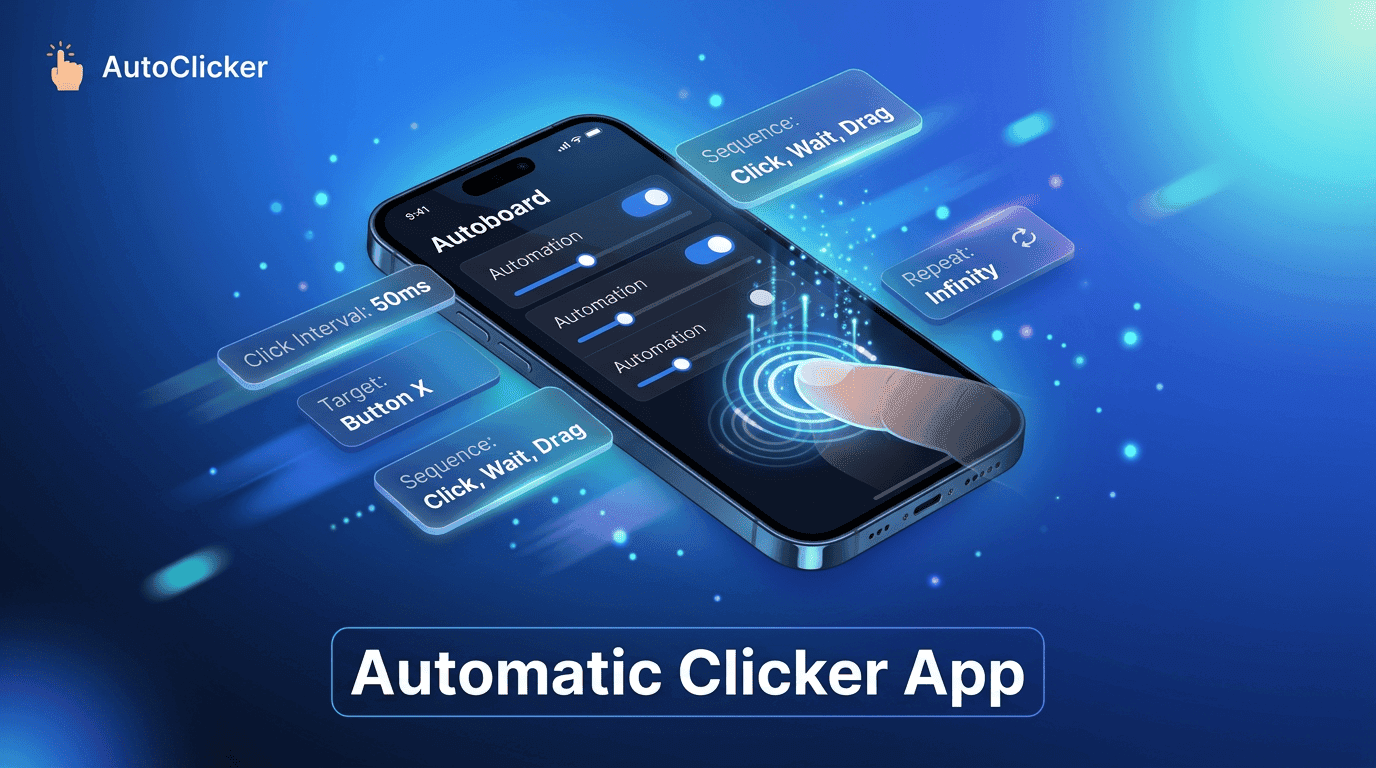
Everything you need to know about Auto Clicker Apps today.