
Auto Clicker Pro: Everything You Need for Faster Browser Automation
Boost browser productivity using the power of Auto Clicker Pro today.
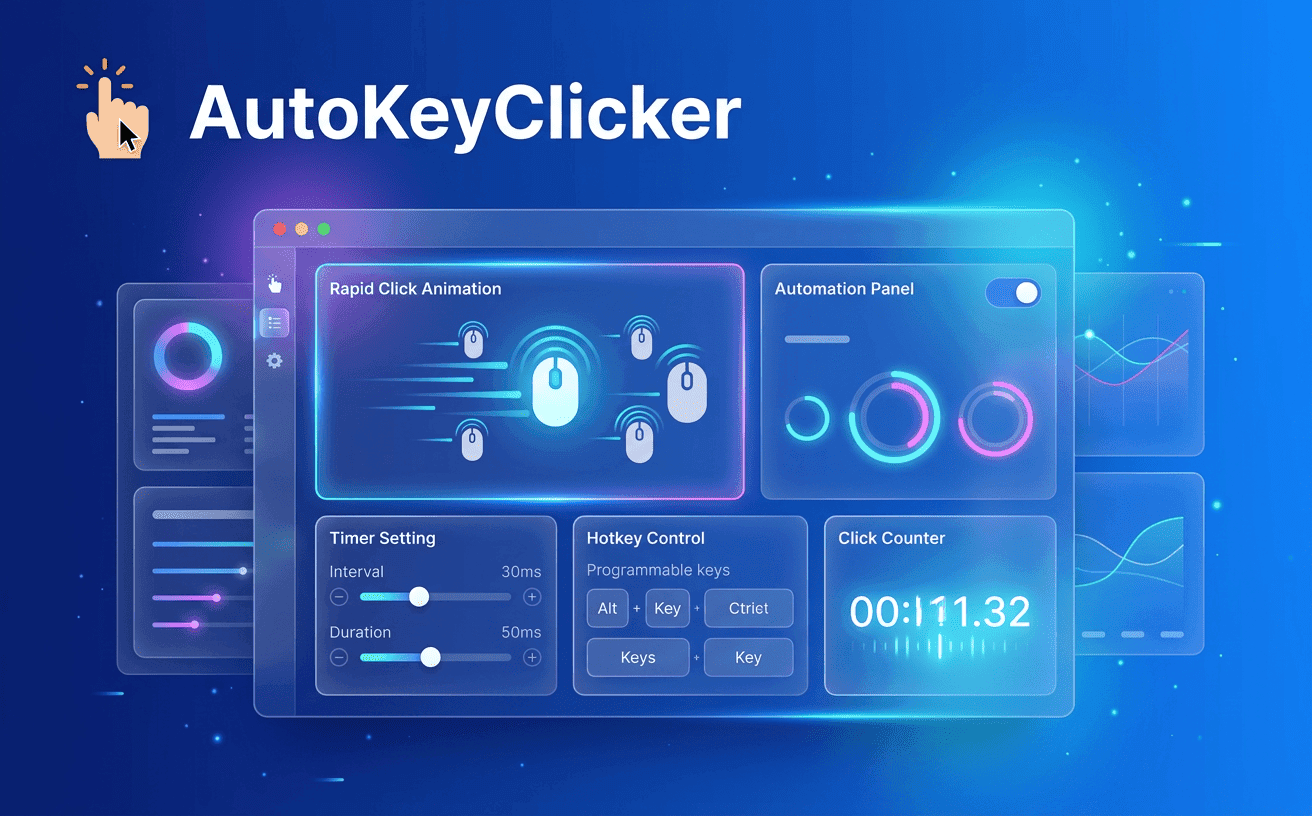
Modern web applications have made work faster than ever, but they have also introduced repetitive tasks that consume valuable time. Whether you’re submitting online forms, testing web pages, managing browser-based workflows, or performing repetitive clicks for productivity, manual clicking can quickly become frustrating. This is where Simple Auto Clicker provides a smarter solution.
If you’ve been searching for a reliable autokeyclicker, you’re likely looking for something that is easy to use, lightweight, and designed specifically for browser tasks. Rather than installing large desktop applications, many users now prefer Chrome extensions because they are quicker to install, easier to manage, and work directly inside the browser.
As more work moves online, repetitive clicking has become a common challenge. An autokeyclicker helps automate routine browser tasks, saving time and boosting productivity.
Saves Time
Simple Auto Clicker automates repetitive actions like:
Reduces Physical Effort
Automating clicks reduces unnecessary mouse movement, making long browsing sessions more comfortable.
Improves Accuracy
An autokeyclicker performs clicks consistently, reducing manual errors during repetitive workflows.
Easier Than Desktop Software
Unlike traditional automation tools, Simple Auto Clicker installs directly in Chrome and is ready to use in minutes.
Perfect for Browser Work
Whether you’re using online dashboards, CRM platforms, or web apps, Simple Auto Clicker helps automate repetitive tasks and keeps your workflow efficient.
An autokeyclicker is a browser automation tool that performs mouse clicks automatically at user-defined intervals. Instead of repeatedly clicking the same button, Simple Auto Clicker automates the process, making repetitive browser tasks faster and more efficient.
Using the extension is simple:
How Click Automation Works
The extension simulates mouse clicks based on your selected timing, ensuring consistent and accurate performance while reducing manual effort. This is especially useful for repetitive browser workflows and website testing.
Built for Simplicity
Unlike complex automation software, Simple Auto Clicker requires no coding or technical expertise. Its user-friendly interface lets anyone automate everyday browser tasks in just a few clicks, helping improve productivity with a lightweight Chrome extension.
Browser automation helps users complete repetitive tasks faster and more efficiently. With Simple Auto Clicker, an autokeyclicker can handle routine clicks, allowing you to focus on more important work.
Repetitive Browser Clicks
Automate repeated actions like navigating pages, clicking buttons, and performing routine browser tasks to save time and improve consistency.
Online Forms
Speed up repetitive actions on registration pages, CRM systems, surveys, and business portals by automating clicks such as Next, Continue, and Submit.
Browser-Based Games
An autokeyclicker can automate repetitive clicks during browser-based games while giving users full control over when automation starts and stops. Always follow the game’s terms of service.
Productivity Workflows
Simplify everyday browser tasks like managing dashboards, navigating menus, and handling repetitive web-based processes with Simple Auto Clicker.
Testing Websites
QA professionals and developers can automate repetitive clicks when testing forms, buttons, navigation, and user interactions, making browser testing faster, more accurate, and more consistent.
A good autokeyclicker should be simple, reliable, and easy to use. Simple Auto Clicker is built to automate browser tasks without complicated setup or unnecessary features.
One-Click Automation ➜ Start automating repetitive browser clicks instantly with a simple interface that’s suitable for both beginners and experienced users.
Adjustable Click Intervals ➜ Set custom click speeds to match different tasks, whether you need slower intervals for web pages or faster repetitive clicks for testing.
Start and Stop Controls ➜ Stay in control by starting or stopping automation whenever needed, making it easy to switch between manual and automated tasks.
Lightweight Chrome Extension ➜ Unlike bulky desktop software, Simple Auto Clicker installs directly in Chrome and delivers smooth performance without consuming excessive system resources.
Browser-Friendly Performance ➜ Built specifically for Chrome, the extension integrates seamlessly with web applications, helping users automate repetitive browser tasks while maintaining an efficient workflow.
One reason Chrome extensions continue growing in popularity is their ease of installation. Users can begin automating browser tasks within just a few minutes.
Installing Simple Auto Clicker is a straightforward process.
Step 1: Open the Chrome Web Store
Launch Google Chrome and visit the Chrome Web Store to search for the extension.
Step 2: Find Simple Auto Clicker
Locate the official Simple Auto Clicker extension and review its description, features, and permissions before installation.
Step 3: Add the Extension
Select Add to Chrome and confirm the installation.
Chrome will automatically install the extension and make it available from the browser toolbar.
Step 4: Pin the Extension
For faster access, pin the extension to your Chrome toolbar.
This makes starting automation quicker whenever repetitive browser tasks arise.
Step 5: Configure Your Preferences
Before beginning automation, review the available settings and configure click intervals according to your workflow.
Within just a few minutes, users can begin using an autokeyclicker to automate repetitive browser actions efficiently.
As browser-based work continues to grow, repetitive clicking has become a common part of many daily tasks. Simple Auto Clicker helps automate these routine actions with an autokeyclicker, saving time and improving workflow efficiency. It reduces repetitive effort while maintaining consistent browser interactions across different websites and applications.
Whether you’re handling data entry, QA testing, browser automation, or administrative work, automation simplifies repetitive processes. It minimizes manual clicking, improves accuracy, and supports smoother browser workflows throughout the day. From business dashboards to online productivity tools, repetitive tasks become easier to manage.
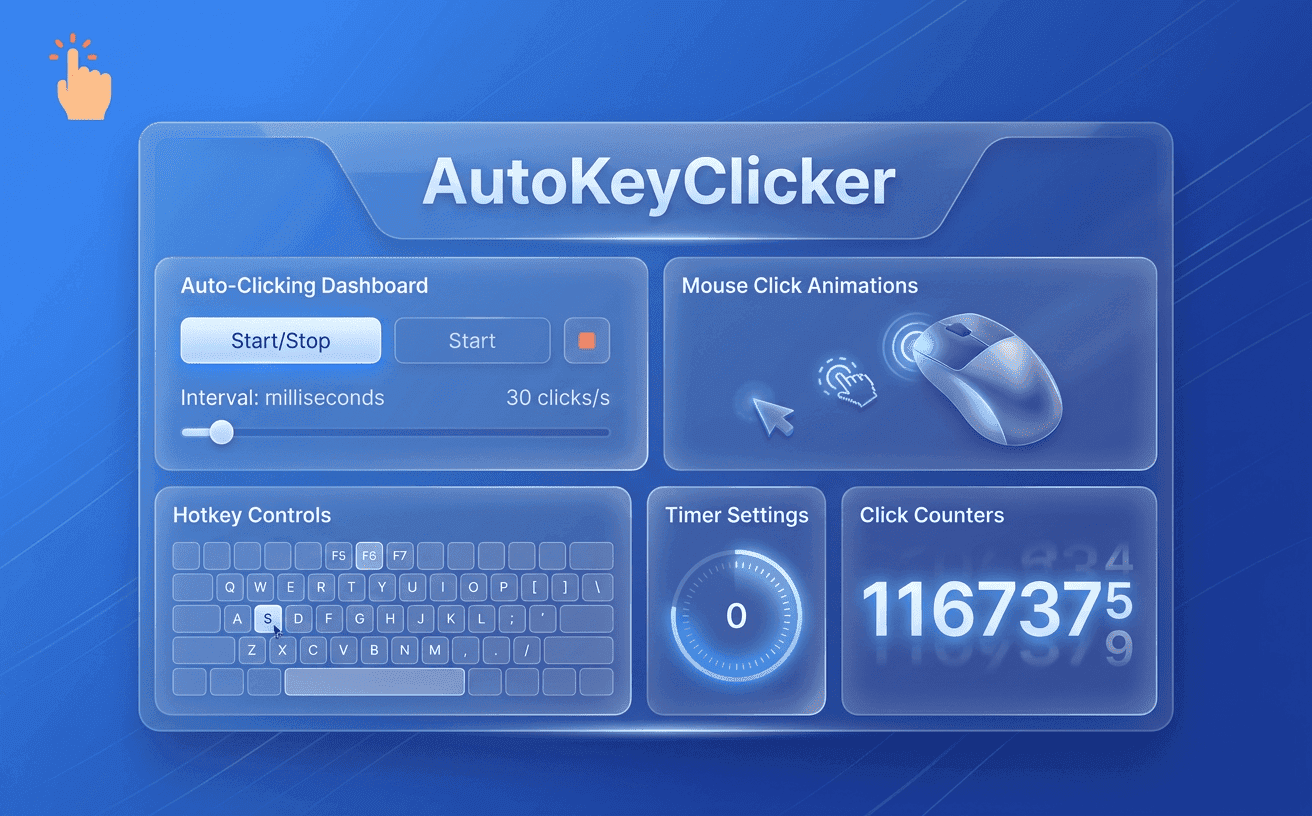
While desktop automation software has existed for years, browser extensions have become the preferred option for users who primarily work online.
THE FOLLOWING COMPARISON HIGHLIGHTS THE ADVANTAGES.
| Feature | Desktop Auto Clicker | Chrome Extension (Simple Auto Clicker) |
|---|---|---|
| Installation | Requires software download | Installs directly in Chrome |
| Browser Integration | Limited | Built specifically for browser workflows |
| Setup Process | Often complex | Beginner-friendly |
| System Resources | Higher usage | Lightweight |
| Accessibility | Runs separately | Available from Chrome toolbar |
| Updates | Manual in many cases | Managed through Chrome |
| Daily Browser Productivity | Moderate | Excellent |
For users whose work happens almost entirely inside Chrome, a browser extension provides a faster and more convenient automation experience.
Safety is one of the first questions users ask before installing any browser extension.
When downloaded from a trusted source and used responsibly, Simple Auto Clicker offers a practical way to automate repetitive browser clicks while keeping the user in control.
To ensure a safe experience:
Responsible use helps maintain both security and reliable browser performance.
A well-configured autokeyclicker does more than automate clicks it creates a smoother, more efficient browsing experience. Spending a few moments optimizing your setup can improve performance and help you get consistent results every time.
Adapt to Different Websites
Not every webpage behaves the same. Adjusting your click settings based on the task allows automation to work naturally across different websites and web applications.
Build a Reliable Workflow
Combining automation with an organized browser workspace makes repetitive tasks easier to manage. Keeping only the required tabs open and planning your workflow helps maintain uninterrupted productivity.
Monitor Your Automation
Instead of letting automation run unattended, check its progress occasionally. This ensures clicks are happening where intended and allows you to make quick adjustments whenever needed.
Keep Improving Your Experience
As your daily tasks change, update your automation settings to match new workflows. Fine-tuning Simple Auto Clicker over time helps you achieve faster, smarter, and more efficient browser automation.
Getting the most from browser automation isn’t about increasing speed it’s about creating smarter workflows.
Here are several practical tips:
Small workflow improvements can save significant time over weeks and months of regular browser use.
An autokeyclicker automates repetitive mouse clicks inside the browser, helping users save time during routine tasks such as testing, navigation, and repetitive workflows.
Yes. Simple Auto Clicker is designed with a straightforward interface that allows users to configure automation quickly without requiring programming knowledge.
Yes. Users can configure click timing based on the specific workflow, allowing greater flexibility for different browser activities.
Absolutely. Many users automate repetitive browser interactions while working with dashboards, web applications, testing environments, and online tools.
For users who spend most of their time working in Chrome, browser extensions are generally easier to install, simpler to access, and better integrated into everyday browser workflows.
Repetitive clicking shouldn’t slow down your productivity. Whether you’re testing websites, managing browser-based workflows, navigating online dashboards, or completing routine web tasks, Simple Auto Clicker offers a lightweight and user-friendly solution that helps automate repetitive actions with ease.
By choosing an autokeyclicker, you can reduce manual effort, improve workflow consistency, and spend more time on work that truly matters. From flexible click intervals to simple browser integration, the extension is designed to support modern Chrome users looking for a faster and more efficient way to work.
If you’re ready to simplify repetitive browser tasks, explore the Simple Auto Clicker extension today and experience how intelligent browser automation can make your daily workflow more productive, accurate, and efficient.
Free, element-aware, three permissions, no tracking. About 30 seconds from install to your first run.

Boost browser productivity using the power of Auto Clicker Pro today.
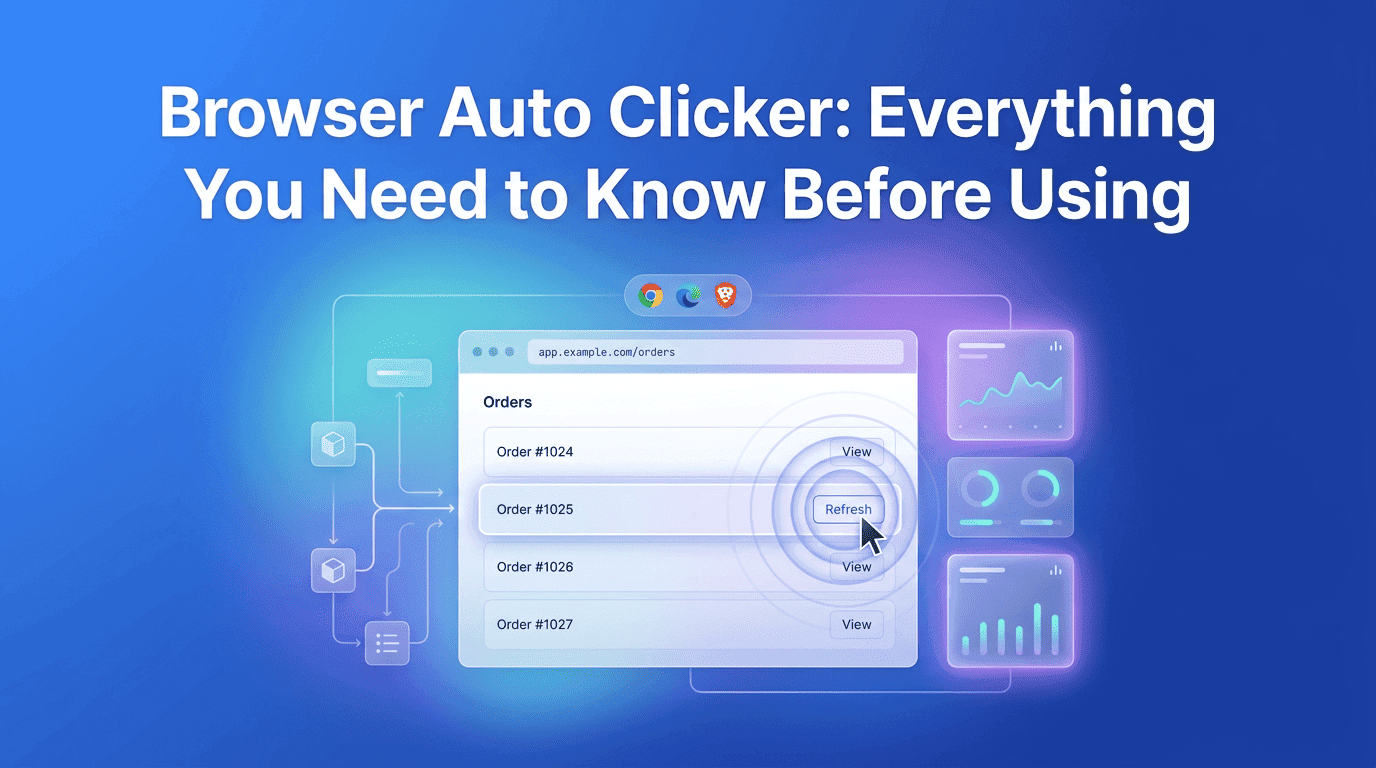
Everything you need to know about Browser Auto Clicker automation.

Create consistent mobile automation using a customizable Auto Tapping App.