
Automatic Tapper Performance Guide: Build Faster, Smarter Mobile Workflows
Save valuable time by automating repetitive touch actions with Automatic Tapper.

Repetitive screen interactions often become time-consuming when the same action must be performed repeatedly. Instead of relying on manual tapping, a well-configured auto tapping app helps create structured workflows that execute repetitive actions with greater consistency and precision. The real advantage of automation is not speed alone it is the ability to perform identical tasks accurately without continuous user intervention.
Simple Auto Clicker allows users to build automation that adapts to different workflow requirements, whether the objective is testing applications, simplifying routine interactions, supporting accessibility, or improving productivity. However, achieving reliable results depends on proper planning, optimized settings, and continuous refinement rather than simply activating automation.
This guide explains the best practices that help an auto tapping app deliver accurate, efficient, and long-lasting automation performance.
Every successful automation workflow begins with preparation. Before creating tap sequences, it is important to identify exactly what the automation should accomplish and how each interaction contributes to the final result.
A structured plan should include:
Planning these steps before configuration reduces unnecessary adjustments later. Instead of correcting errors during execution, users can create a workflow that already follows the application’s natural behavior. With Simple Auto Clicker, a properly planned auto tapping app workflow becomes more predictable, easier to maintain, and capable of handling repetitive interactions with greater stability.
One of the biggest strengths of an auto tapping app is its ability to repeat the same interaction sequence without variation. Unlike manual tapping, which naturally changes due to fatigue or distractions, automation follows predefined instructions throughout the entire process.
A repeatable workflow depends on four important elements:
When these elements work together, every automation cycle produces nearly identical results. This consistency is valuable for repetitive application navigation, structured testing, routine digital activities, and accessibility support.
Inside Simple Auto Clicker, users can gradually optimize each workflow instead of trying to automate every interaction at once. This approach helps the auto tapping app maintain stable performance even as workflows become more advanced.
Modern automation extends beyond repeating a single tap. A feature-rich auto tapping app offers tools that make workflows more flexible while reducing setup time.
Gesture Recording
Gesture recording captures natural user interactions and converts them into repeatable automation. Instead of manually defining every touch point, users can record swipes, long presses, and movement patterns that accurately represent real navigation.
Floating Controls
Floating controls allow users to start, pause, or stop automation without leaving the active application. This improves workflow management while reducing interruptions during execution.
Saved Profiles
Different automation tasks often require different settings. Saving workflow profiles makes it possible to switch between configurations instantly without rebuilding every sequence.
Scheduling
Scheduling allows automation to begin automatically at predefined times. This feature is useful for recurring workflows that follow regular intervals throughout the day.
Multi-Touch Support
Some applications require multiple touch points working together. Multi-touch functionality expands automation possibilities by supporting more advanced interaction patterns than single-point tapping alone.
When these features are combined inside Simple Auto Clicker, an auto tapping app becomes a complete workflow automation solution instead of just a repetitive tapping utility.
Automation becomes easier when workflows follow proven structures instead of being created from scratch each time. The following templates provide practical starting points that users can customize according to their own requirements.
Daily Repetitive Tasks
↓
Game Automation
↓
App Demonstrations
↓
Testing Workflows
↓
Accessibility Routines
↓
These templates provide a structured foundation that users can easily expand as workflow requirements become more advanced. Instead of relying on trial and error, Simple Auto Clicker helps users build an auto tapping app workflow that remains organized, accurate, and adaptable over time.
Building an automation workflow is only the first step. Measuring its performance ensures that every sequence continues to operate efficiently as applications, interfaces, and devices evolve. A reliable auto tapping app should deliver consistent results every time it runs, regardless of the length or complexity of the workflow.
Tap Accuracy
Every tap should land on the intended screen element without shifting from its configured position. Even a small positioning error can affect the entire sequence, especially when multiple actions depend on one another. Regularly reviewing tap locations helps maintain workflow accuracy.
Response Time
The interval between taps should match the application’s response speed. When automation executes faster than the interface can react, interactions may be skipped or processed incorrectly. Balanced timing creates smoother and more reliable execution.
Success Rate
Performance can also be measured by how often a workflow completes successfully without interruption. If automation frequently stops or misses actions, reviewing timing, tap positions, and loop settings usually resolves the issue.
Workflow Stability
A stable auto tapping app continues performing consistently during both short and long automation sessions. Stable execution indicates that configuration settings, device performance, and application behavior are working together effectively.
Reviewing these performance indicators regularly allows users to improve automation quality while identifying opportunities for further optimization inside Simple Auto Clicker.
Automation should improve efficiency without affecting device performance or workflow stability. Following a few practical habits helps users maintain reliable automation while reducing unexpected interruptions.
Some recommended best practices include:
These practices not only improve workflow reliability but also make future adjustments easier. When automation is managed carefully, every workflow becomes easier to maintain and more dependable over time.
Using Simple Auto Clicker responsibly allows an auto tapping app to deliver stable performance across different applications while maintaining consistent interaction quality.
| Future Trend | How It Will Improve Automation |
|---|---|
| AI-Powered Automation | Automation will intelligently recognize interface elements and adapt workflows without requiring frequent manual reconfiguration. |
| Adaptive Tap Timing | Future systems will automatically adjust tap intervals based on application response time, creating smoother and more accurate execution. |
| Advanced Gesture Automation | Beyond simple taps, automation will combine swipes, long presses, and multi-touch gestures to handle more complex interaction sequences. |
| Cloud Workflow Synchronization | Users will be able to save automation profiles online and seamlessly access the same configurations across multiple devices. |
| Voice-Based Automation Setup | Voice commands may simplify workflow creation by allowing users to configure and launch automation without navigating multiple settings. |
| Context-Aware Automation | Future tools could detect screen changes and dynamically modify tap sequences to keep workflows running without interruption. |
A well-designed auto tapping app is built on planning, consistency, and continuous improvement rather than repetitive speed alone. Every successful workflow begins with clear objectives, accurate tap positioning, balanced timing, and structured execution that can be repeated without unnecessary adjustments.
Throughout this guide, we explored how workflow planning, repeatable automation, advanced features, practical templates, performance evaluation, and safe automation practices contribute to better long-term results. Each of these areas plays an important role in building workflows that remain accurate, stable, and easy to maintain.
With Simple Auto Clicker, users have the flexibility to create automation that adapts to different requirements instead of relying on a single fixed approach. As workflows become more advanced, regular testing and optimization help maintain consistent performance across changing applications and devices.
Looking ahead, the future of an auto tapping app will focus on intelligent automation, adaptive interaction, and smarter workflow management. Users who prioritize thoughtful configuration over maximum speed will be better prepared to take advantage of these innovations while continuing to achieve reliable and efficient automation.
Free, element-aware, three permissions, no tracking. About 30 seconds from install to your first run.

Save valuable time by automating repetitive touch actions with Automatic Tapper.
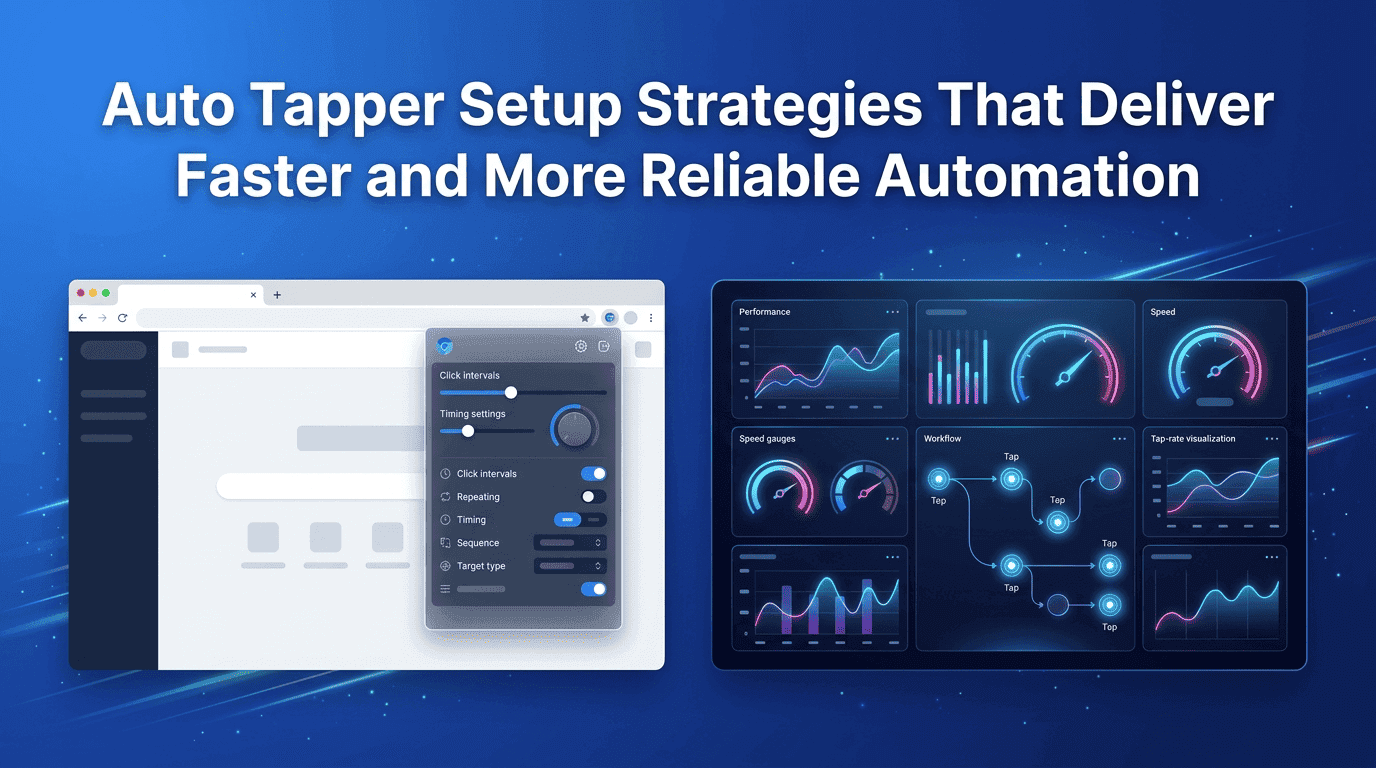
Achieve faster task completion by replacing manual taps with Auto Tapper.
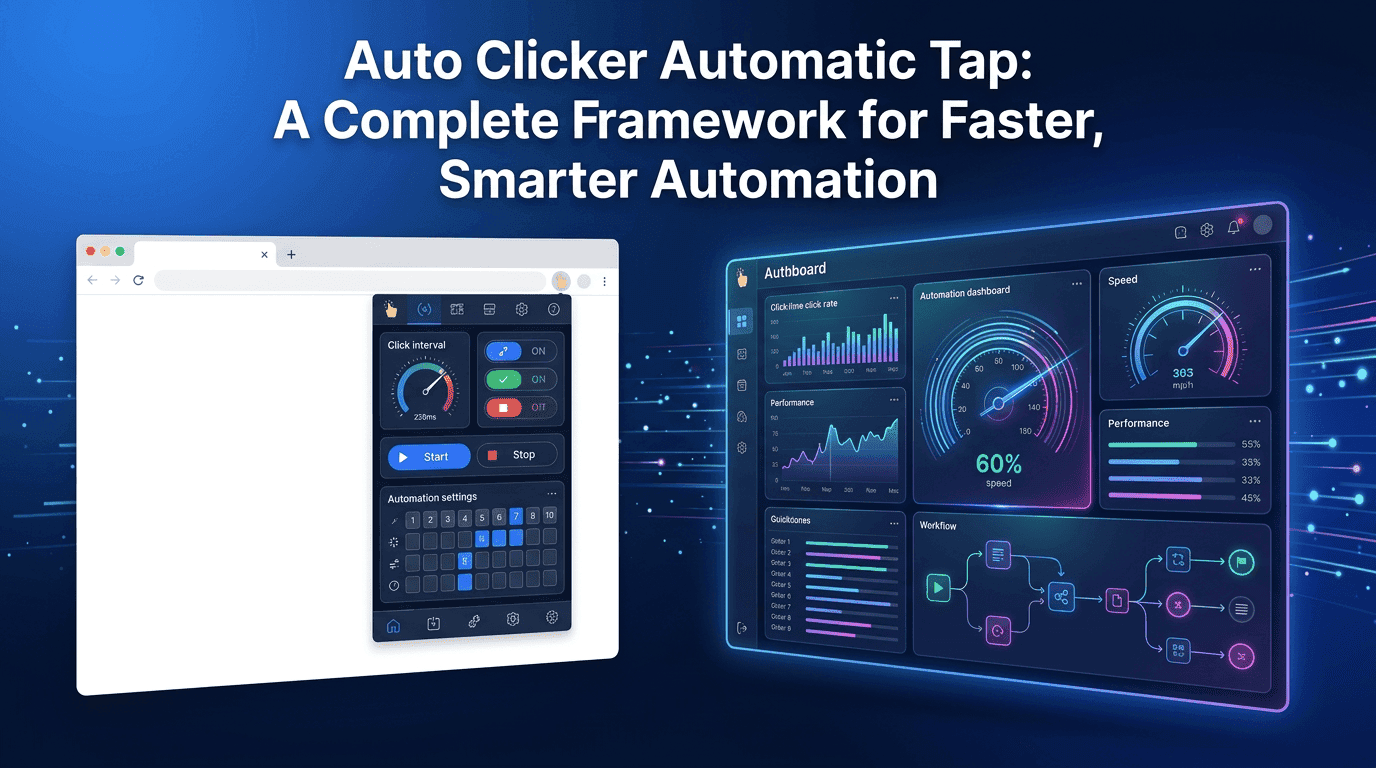
Improve workflow efficiency using advanced auto clicker automatic tap features.