
Browser Auto Clicker: Everything You Need to Know Before Using
Everything you need to know about Browser Auto Clicker automation.
Browser automation has become an essential part of modern digital productivity. Whether you’re completing repetitive online tasks, testing web applications, or simplifying routine workflows, automation tools can significantly reduce manual effort while improving consistency. Among the many browser-based productivity tools available today, the Simple Auto Clicker Auto Clicker Extension has become a practical solution for users who regularly perform repetitive clicking tasks.
As websites continue to become more interactive, many online activities involve repetitive actions such as clicking buttons, confirming prompts, refreshing dashboards, completing forms, or navigating through multiple pages.
In this comprehensive guide, you’ll learn how browser click automation works behind the scenes, the technologies that power modern browser extensions, where automation delivers the greatest value, and the best practices for using an Auto Clicker Extension safely and effectively.
An Auto Clicker Extension is a browser-based tool that automatically performs mouse clicks on selected webpage elements according to user-defined settings. Instead of requiring users to repeatedly click the same button or interface element, the extension simulates those interactions automatically while remaining inside the browser environment.
The Simple Auto Clicker Auto Clicker Extension is designed to simplify repetitive browser interactions through an easy-to-use interface. Rather than depending on complicated scripts or coding knowledge, users can configure click intervals, control automation timing, and manage repetitive browser actions with only a few settings.
An auto clicker extension is commonly used for activities such as:
As organizations increasingly rely on cloud-based applications, browser-based automation continues to play an important role in improving productivity without adding unnecessary complexity. For many users, an Auto Clicker Extension offers an ideal starting point for introducing automation into everyday digital work.
Digital workflows have changed dramatically over the past decade. Businesses, educational institutions, and online services now operate primarily through web applications, requiring users to spend a significant portion of their day inside a browser. As a result, repetitive browser interactions have become increasingly common.
Many online platforms require users to perform identical actions multiple times. These might include clicking confirmation buttons, submitting forms, navigating between pages, refreshing reports, managing online dashboards, or repeatedly interacting with browser-based tools.
A browser auto clicker can often provide exactly the level of automation needed for browser-specific tasks without introducing unnecessary complexity. Because it operates directly within supported browsers, users can automate repetitive web interactions while maintaining familiar workflows.
At first glance, browser click automation appears simple: a tool repeatedly clicks a button on your behalf. Behind the scenes, however, several coordinated processes work together to make that automation accurate, responsive, and reliable.
The process begins with identifying the element that should receive the automated click. Every webpage is built from structured HTML elements that form the Document Object Model (DOM). Buttons, links, menus, forms, and other interactive components each occupy specific positions within this structure. Browser extensions interact with these elements by identifying the correct target before initiating any automated action.
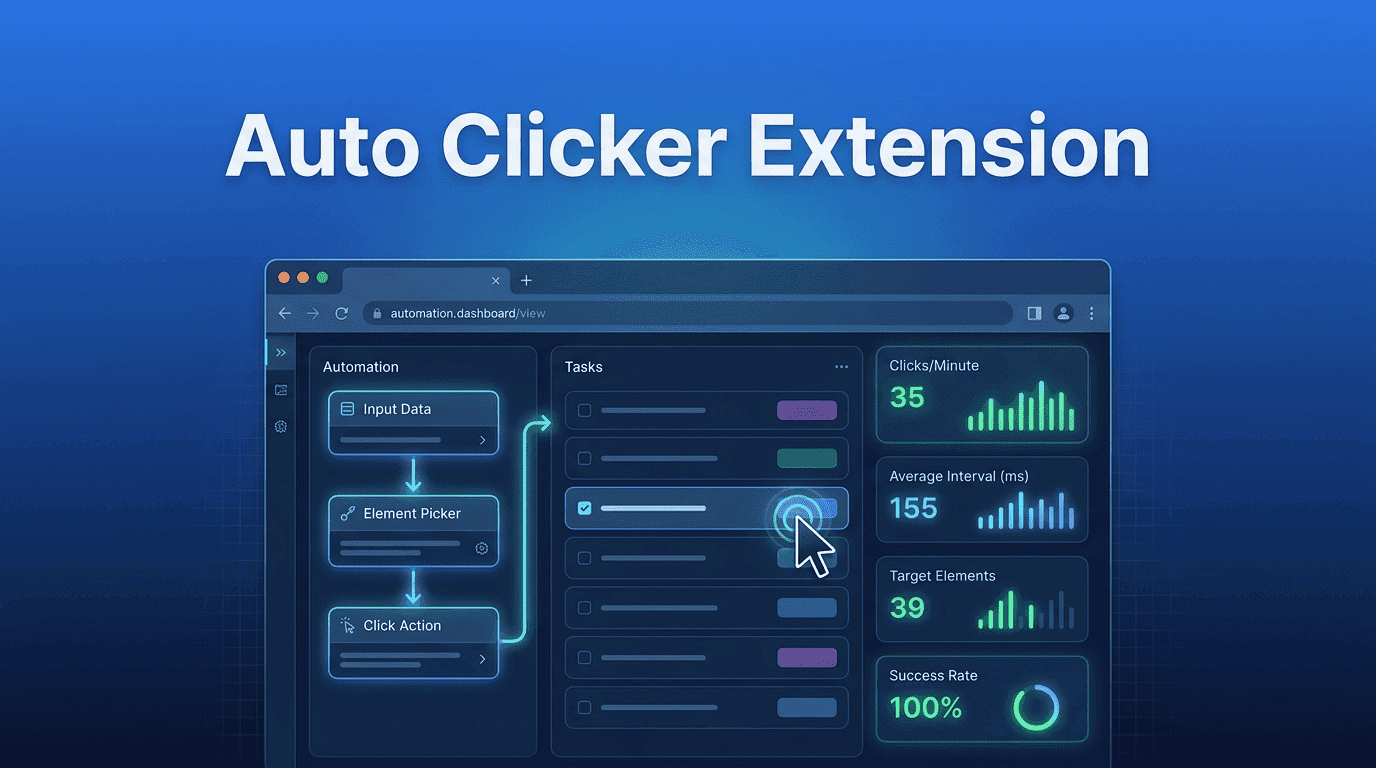
Browser Click Automation Workflow
| Stage | Explanation | Benefit |
|---|---|---|
| Element Detection | Identifies the target button or clickable webpage element. | Improves click accuracy and reliability. |
| Click Simulation | Generates browser-supported mouse click events. | Eliminates repetitive manual clicking. |
| Timing Control | Applies user-defined intervals between clicks. | Creates consistent automation behavior. |
| Loop Execution | Repeats click actions according to configured settings. | Saves time during repetitive workflows. |
| Completion | Stops automatically or through user input. | Gives users complete control over automation. |
When these components work together, browser automation becomes both efficient and predictable. A chrome auto clicker built with responsible automation practices helps users complete repetitive browser tasks while maintaining control over when, where, and how automated clicks occur.
JavaScript Powers Browser Automation
JavaScript controls the automation process by detecting elements, managing timers, and performing clicks at the intervals set by the user.
DOM Interaction Identifies Webpage Elements
The extension interacts with the webpage’s DOM to locate specific buttons, links, and forms for accurate automated clicking.
Browser Events Create Natural Interactions
It generates browser-supported click events that mimic normal user interactions, allowing websites to respond correctly.
Extension Permissions Keep Automation Secure
Required permissions limit the extension’s access to approved websites and browser features, helping protect user privacy.
Local Storage Saves User Preferences
Settings such as click intervals, shortcuts, and automation modes are stored locally for quick access in future sessions.
Lightweight Browser Integration
The extension runs only when needed, minimizing system resource usage while providing smooth browser automation.
Browser automation is not limited to one style of clicking. Different workflows require different automation methods depending on the complexity of the task and the level of user control needed.
Single-Click Automation ➜ Performs one click at each scheduled interval for simple repetitive browser tasks.
Double-Click Automation ➜ Automatically performs double-click actions where applications or websites require them.
Continuous Clicking ➜ Repeats clicks continuously until stopped manually or a preset limit is reached.
Timed Click Sequences ➜ Executes clicks using different time intervals for structured automation workflows.
Scheduled Automation ➜ Begins clicking after a predefined delay, allowing users time to prepare.
Multi-Step Browser Workflows ➜ Automates multiple browser actions in sequence with consistent timing.
Conditional Automation ➜ Waits for specific webpage elements or conditions before executing the next click.
Browser automation has evolved far beyond simple repetitive clicking. Today, organizations and individuals across multiple industries use browser automation to improve efficiency, reduce manual effort, and streamline digital workflows.
Software Testing and Quality Assurance
Development teams frequently test buttons, forms, menus, and interactive webpage components.
Automation helps testers repeat identical actions consistently while identifying interface issues more efficiently than manual testing alone.
Data Entry Workflows
Many online business processes involve entering information into browser-based systems.
Automation assists with repetitive navigation and clicking, allowing employees to focus more on data accuracy than repetitive interface interaction.
Productivity Workflows
Professionals often spend hours working inside cloud-based platforms.
An Auto Clicker Extension helps simplify repetitive browser interactions so users can dedicate more attention to planning, communication, and decision-making instead of routine clicking.
Web Application Monitoring
Organizations frequently monitor browser dashboards that require repeated refreshes or status checks.
Automation reduces repetitive manual interaction while helping teams monitor information more consistently.
Online Learning Platforms
Educational websites often involve repetitive navigation between lessons, quizzes, and learning modules.
Automation can simplify these repetitive browser interactions while allowing students to focus on educational content.
When implemented responsibly, browser automation delivers measurable improvements for both individual users and organizations. Rather than replacing human decision-making, automation removes repetitive manual effort so users can work more efficiently.
One of the biggest advantages is increased productivity. By eliminating repetitive clicking, users complete browser-based tasks more quickly while maintaining consistent performance throughout long workflows.
Manual Clicking vs Browser Click Automation
| Manual Clicking | Auto Clicker Extension |
|---|---|
| Repetitive manual work | Automated browser workflow |
| Slower task completion | Faster repetitive execution |
| Higher physical fatigue | Reduced repetitive effort |
| Greater chance of mistakes | Consistent automated actions |
| Lower productivity | Improved workflow efficiency |
Browser Performance ➜ Running too many tabs or extensions can slow browser automation. An optimized browser delivers smoother and more reliable performance.
Website Complexity ➜ Dynamic layouts, animations, and interactive elements may require adjusted click intervals. Proper settings improve automation accuracy.
Dynamic Webpage Content ➜ Websites that load content without refreshing can change element positions. Automation must detect these updates before clicking.
Internet Speed ➜ Slow connections can delay page loading and server responses. Appropriate click intervals help prevent missed interactions.
Device Hardware ➜ A faster processor and sufficient memory improve browser responsiveness. Better hardware supports stable automation during heavy workloads.
Browser Updates ➜ Keeping the browser and extension updated ensures compatibility, security, and improved automation performance.
Extension Optimization ➜ Lightweight, well-optimized extensions use fewer system resources. This helps maintain fast and efficient browser automation.
Automation should always be used responsibly. While browser extensions can significantly improve productivity, users should also understand how permissions, privacy, and security contribute to a safe browsing experience.
Before installing any extension, review the permissions it requests. Reputable developers request only the access required for the extension to perform its intended functions. If an extension asks for permissions that seem unrelated to its purpose, it is worth investigating further before installation.
Finally, maintaining browser security involves reviewing installed extensions periodically. Removing unused extensions and keeping only those that provide ongoing value helps reduce unnecessary browser permissions and improves overall performance.
Browser extensions are designed specifically for web-based activities. They are easy to install, require little technical knowledge, and integrate naturally with everyday browsing.
Desktop auto clickers operate across the entire operating system rather than inside a browser. They are useful for broader automation tasks but may include features unnecessary for browser-focused workflows.
Automation scripts offer greater flexibility and customization but often require programming knowledge. Developers frequently use scripting to build highly specialized workflows that extend beyond simple click automation.
Comparison Table
| Feature | Auto Clicker Extension | Desktop Auto Clicker | Browser Scripts | RPA Software |
|---|---|---|---|---|
| Installation | Easy | Medium | Advanced | Complex |
| Coding Required | No | No | Yes | Sometimes |
| Browser Integration | Excellent | Limited | Excellent | Excellent |
| Learning Curve | Low | Medium | High | High |
| Best For | Everyday browser workflows | System-wide automation | Developers | Enterprise automation |
Browser automation continues to evolve alongside advances in web technology and artificial intelligence. Future automation tools are expected to become more adaptive, intelligent, and user-friendly.
Artificial intelligence is beginning to assist automation by recognizing webpage layouts and identifying interface elements more intelligently. Rather than relying solely on predefined actions, future systems may adapt automatically when webpages change.
Cross-browser synchronization is another growing trend. Users increasingly expect their automation settings to remain available across multiple devices and browsers, creating a more seamless productivity experience.
These developments indicate that browser automation will continue moving beyond repetitive clicking toward more intelligent digital workflow assistance.
Selecting the right extension involves more than comparing feature lists. A reliable solution should balance functionality, security, ease of use, and long-term support.
Customization options are equally important. Adjustable click intervals, shortcut keys, looping controls, and flexible configuration settings make the extension adaptable to a wider variety of workflows.
Finally, examine user reviews and ongoing developer support. Regular updates and responsive maintenance indicate that the extension is actively improved and remains compatible with evolving browser technologies.
An auto clicker extension is a browser-based tool that automates repetitive mouse clicks on webpages according to user-defined settings, reducing manual effort during repetitive online tasks.
It identifies webpage elements, generates browser-supported click events, and repeats those actions based on configured timing and automation rules.
Yes, when downloaded from trusted sources and used responsibly. Always review extension permissions and install tools from reputable developers.
Browser automation has transformed the way people interact with modern web applications. As online workflows continue to become more complex, reducing repetitive manual tasks is no longer simply a convenience; it is an effective way to improve productivity, consistency, and overall efficiency.
An Auto Clicker Extension provides a practical solution for handling repetitive browser interactions without requiring advanced technical knowledge. From testing web applications and navigating dashboards to simplifying everyday browsing tasks, browser-based automation allows users to spend less time on repetitive actions and more time on meaningful work.
Choosing a trusted solution such as the Simple Auto Clicker Auto Clicker Extension ensures users benefit from reliable performance, intuitive controls, and responsible browser integration. By combining thoughtful configuration with best practices for security and responsible use, browser automation can become a valuable part of both personal and professional digital workflows.
Free, element-aware, three permissions, no tracking. About 30 seconds from install to your first run.
Everything you need to know about Browser Auto Clicker automation.

Create consistent mobile automation using a customizable Auto Tapping App.
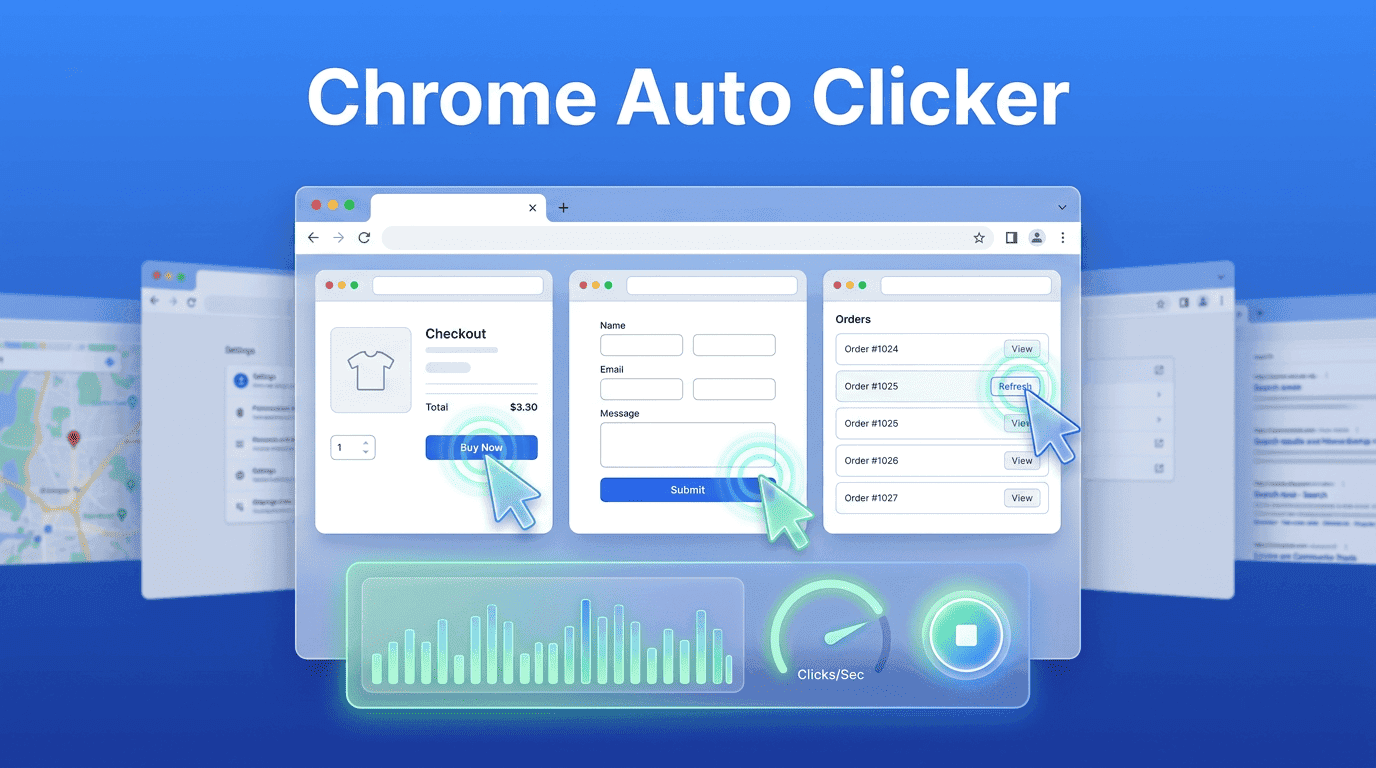
A practical guide to Chrome Auto Clicker for efficient browser tasks.