
Browser Auto Clicker: Everything You Need to Know Before Using
Everything you need to know about Browser Auto Clicker automation.
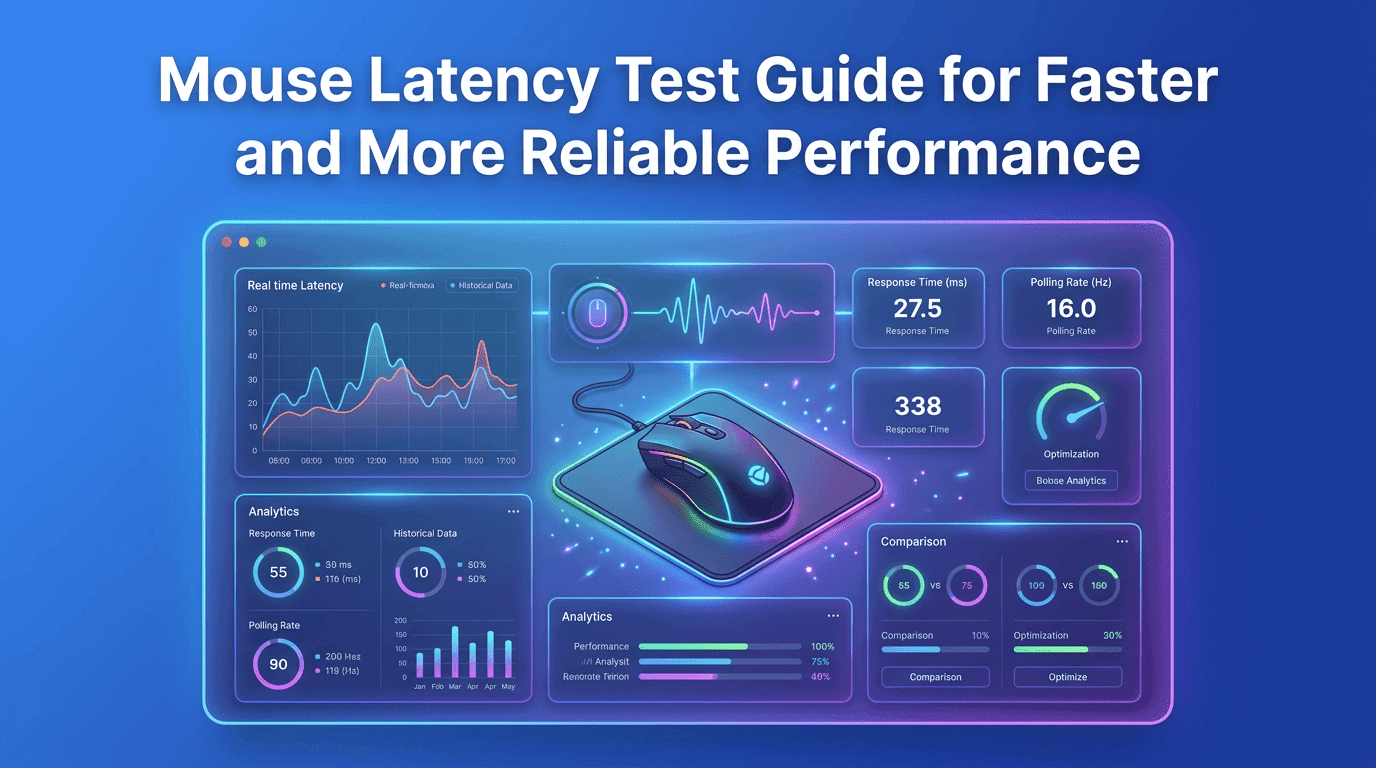
Every click matters. Whether you’re editing a high-resolution image, navigating complex spreadsheets, playing competitive games, or managing repetitive workflows, the speed at which your mouse communicates with your computer directly influences your experience. While many users focus on processor speed, monitor refresh rate, or internet connectivity, mouse responsiveness is often overlooked until delays become noticeable.
A Mouse Latency Test helps measure how quickly your mouse registers an action and delivers it to your system. Even a small delay can affect precision, consistency, and overall workflow. Instead of guessing whether your hardware is performing as expected, testing provides measurable insights that help identify hidden issues and optimize performance.
Modern latency testing is no longer limited to enthusiasts. Designers, developers, office professionals, and gamers alike benefit from understanding how their devices respond under different conditions. Combined with reliable testing methods and practical optimization strategies, you can make informed decisions about settings, peripherals, and software configurations.
Mouse responsiveness influences far more than gaming. Every interaction with your computer depends on how quickly your input is detected, processed, and displayed on the screen. A responsive mouse creates smoother navigation, improves accuracy, and makes everyday computing feel effortless.
Imagine selecting hundreds of cells inside a spreadsheet, adjusting timeline markers during video editing, or drawing detailed illustrations. Tiny delays accumulate throughout these activities, increasing fatigue and reducing efficiency over time. While individual delays may seem insignificant, thousands of interactions every day amplify their impact.
Running a Mouse Latency Test allows you to determine whether your hardware is performing consistently or if hidden delays are affecting productivity. Rather than relying on perception alone, measurable data provides a clearer understanding of your system’s responsiveness.
User experience extends beyond interface design. Hardware responsiveness shapes how natural every interaction feels.
When cursor movement immediately reflects physical motion, users gain confidence in every click and drag operation. Consistent responsiveness reduces unnecessary corrections, making interactions appear seamless.
Fast response also improves accessibility by creating predictable behavior that users can trust across different applications.
Several indicators suggest it may be time to evaluate your setup:
Instead of replacing hardware immediately, testing helps identify whether software settings, drivers, or system configuration contribute to the delay.
Accurate measurements require a controlled environment. Testing under inconsistent conditions often produces misleading results that make diagnosis difficult.
Before beginning a Mouse Latency Test, spend a few minutes preparing your system. Small adjustments significantly improve measurement reliability and allow comparisons between future test sessions.
Preparing Your Device
Start with the basics.
Reconnect the mouse securely, clean the sensor, verify that batteries are sufficiently charged for wireless devices, and ensure the mouse operates on an appropriate surface.
Install the latest drivers and firmware provided by the manufacturer whenever possible. Updated software frequently contains performance improvements that reduce input inconsistencies.
Closing Background Processes
Background applications compete for processor resources.
Large downloads, cloud synchronization tools, antivirus scans, video rendering software, and unnecessary browser tabs can temporarily increase system load, introducing variability during testing.
Closing resource-intensive applications creates a cleaner environment for obtaining dependable results.
Stable Power and Battery Considerations
Wireless peripherals depend on stable battery levels.
As batteries weaken, transmission consistency may decline depending on the device. Likewise, laptops operating in aggressive power-saving modes sometimes reduce USB performance to conserve energy.
Testing while connected to reliable power ensures more consistent measurements.
Choosing Consistent Testing Conditions
Reliable benchmarking depends on repeatability.
Whenever possible:
Consistent conditions make it easier to compare historical performance and identify genuine improvements after configuration changes.
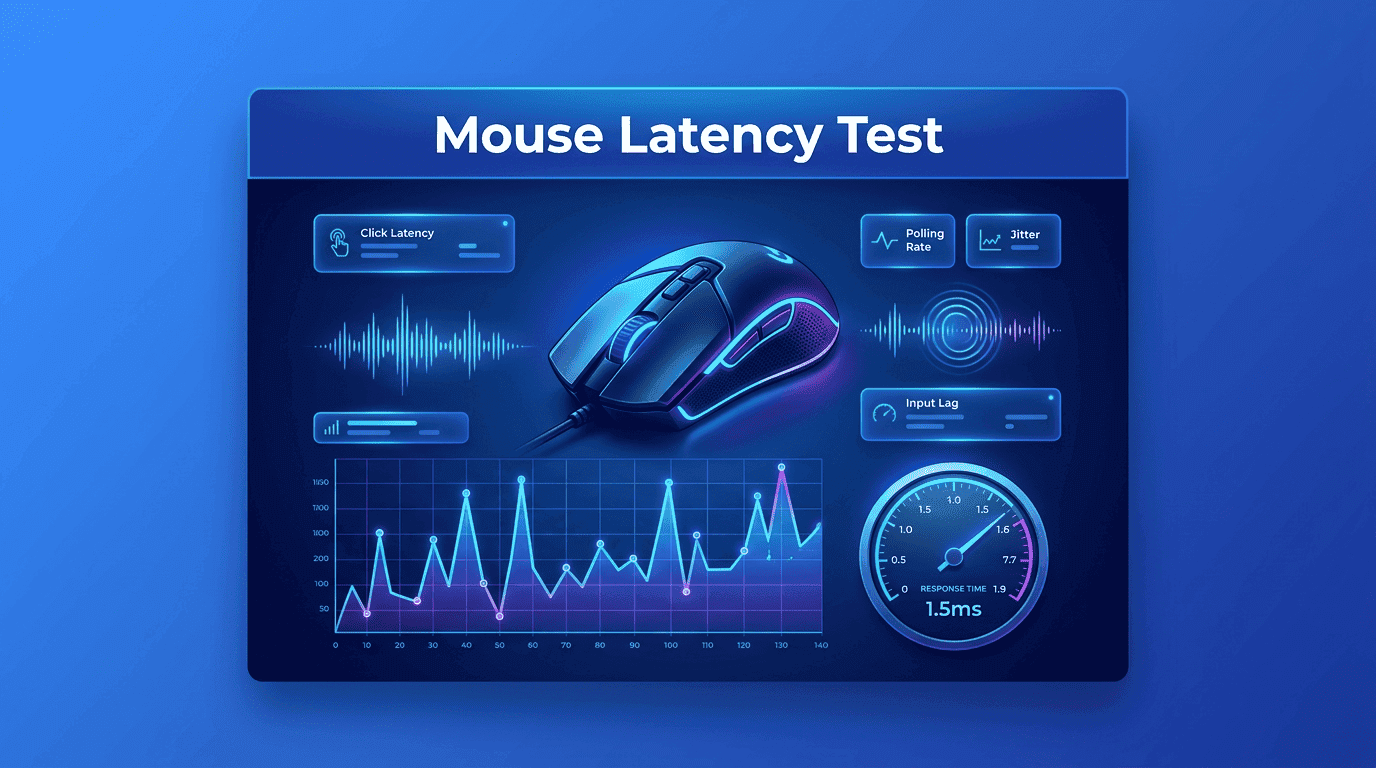
Latency testing is valuable only when you understand what the numbers represent. Looking at a single average value rarely tells the complete story. Stable performance depends on several metrics working together.
A comprehensive mouse test examines consistency, responsiveness, and variation rather than focusing exclusively on the fastest recorded click.
Click Latency
Click latency measures the time between pressing the mouse button and the system registering the action.
Lower values generally indicate faster responsiveness, but consistency remains equally important.
Input Consistency
Consistency reflects how repeatable your results are across multiple measurements.
Two mice may produce similar average latency, yet one delivers nearly identical results every click while another fluctuates dramatically. Predictable performance creates a smoother overall experience.
Response Variation
Variation reveals how much measurements differ throughout a testing session.
Large fluctuations often indicate background activity, unstable wireless communication, driver conflicts, or hardware limitations.
Reducing variation usually improves perceived responsiveness more than simply achieving a lower average latency.
Polling Frequency
Polling rate determines how frequently the mouse reports its position to the computer.
Higher polling frequencies generally improve responsiveness, but they also increase system communication. Testing different configurations helps determine the optimal balance for your hardware and workflow.
Test Repeatability
Reliable performance should remain consistent over time.
Repeat the same mouse test under identical conditions across multiple sessions. Stable results provide greater confidence when comparing devices, evaluating upgrades, or troubleshooting unexpected performance changes.
| Hardware Factor | Impact | Recommended Action |
|---|---|---|
| USB Controller Performance | Shared USB bandwidth can increase input latency. | Connect the mouse to a dedicated USB port. |
| Cable Quality | Damaged or loose cables may cause inconsistent response. | Check and replace worn cables if needed. |
| Wireless Receiver Placement | Poor receiver placement can cause signal interference. | Keep the receiver close to the mouse using an extension adapter. |
| CPU Scheduling | Heavy CPU workloads can delay mouse input processing. | Close resource-intensive applications before testing. |
| System Resource Limitations | Low memory and background programs can reduce responsiveness. | Update drivers and minimize unnecessary background processes. |
Even premium hardware cannot compensate for inefficient software configuration.
Several operating system settings quietly influence mouse responsiveness without users realizing their impact. Reviewing these options periodically helps maintain consistent performance.
Pointer Enhancements
Many operating systems include pointer acceleration features that automatically change cursor movement based on speed.
While useful for general navigation, these settings may reduce movement consistency during tasks requiring precision.
Experimenting with acceleration settings allows you to determine which configuration best matches your workflow.
Power Management
Energy-saving features help extend battery life but occasionally reduce peripheral responsiveness.
Desktop users seeking maximum consistency often benefit from selecting balanced or high performance power plans when performing latency measurements.
USB Selective Suspend
USB selective suspend allows the operating system to temporarily reduce power consumption for connected devices.
Although useful for laptops, it may occasionally introduce slight delays when peripherals resume full operation.
Testing with this setting enabled and disabled can help determine whether it affects your system.
Background Services
Automatic updates, cloud synchronization, security scans, and scheduled maintenance tasks frequently consume processor resources.
Scheduling these activities outside working hours helps maintain consistent responsiveness throughout the day.
Display Synchronization
Mouse input ultimately appears on the monitor.
Display refresh rate, synchronization technology, and graphics settings all contribute to perceived responsiveness. Matching your display configuration with your hardware capabilities creates a smoother overall experience and provides more reliable measurements during future latency evaluations.
Drivers and firmware act as the communication bridge between your mouse and operating system. Even premium hardware cannot perform at its full potential without properly optimized software.
Routine updates help maintain compatibility, improve stability, and occasionally reduce input latency.
Driver Updates
Firmware Updates
Manufacturer Software
Numbers alone rarely tell the complete story. Understanding how to interpret latency reports allows you to distinguish meaningful improvements from normal measurement variation.
Rather than focusing on a single result, evaluate overall consistency across multiple testing sessions.
Reading Averages
Average latency provides a useful baseline for comparing devices or configurations.
However, averages should never be viewed in isolation because occasional spikes may be hidden within otherwise acceptable results.
Peak Latency
Peak latency represents the slowest recorded response during a testing session.
A few isolated peaks are normal, but frequent high values often indicate background activity, driver conflicts, or unstable hardware communication.
Outliers
Outliers are measurements that differ significantly from the majority of results.
Instead of immediately assuming hardware failure, investigate possible causes such as software updates, antivirus scans, wireless interference, or temporary processor load.
Stability Graphs
Many testing tools visualize performance using graphs.
Smooth and consistent graphs generally indicate stable communication, while frequent spikes suggest that additional system optimization may be necessary.
Comparing graphs before and after configuration changes provides valuable insight into whether adjustments genuinely improve performance.
Consistency is the foundation of reliable benchmarking.
Create a checklist that includes:
If you regularly automate repetitive clicking tasks, Simple Auto Clicker works best alongside a well-optimized system. Stable mouse responsiveness ensures automation behaves predictably, reducing unexpected variations during long-running workflows.
Mouse performance testing is evolving beyond basic measurements.
What’s coming next:
AI-based analysis
Cloud benchmarking
Smarter polling systems
Real-time latency dashboards
Use a consistent setup, close background apps, and repeat tests multiple times under the same conditions.
Lower and stable latency is ideal. Consistency matters more than a single number.
Yes, higher polling rates improve responsiveness, but results depend on system stability.
Modern wireless mice are highly optimized and often perform close to wired models.
They can provide estimates, but controlled testing environments are more reliable.
Only after major changes like driver updates, hardware changes, or performance issues.
A Mouse Latency Test is not just about numbers—it’s about understanding how your entire system responds to input. From hardware bottlenecks to software behavior, every layer contributes to performance.
When your setup is optimized, mouse movement feels instant, predictable, and smooth. That’s where productivity and precision naturally improve.
Whether you’re working, designing, or automating tasks with Simple Auto Clicker, consistent responsiveness ensures every action feels controlled and accurate.
Instead of guessing performance, testing gives you clarity and clarity leads to better decisions.
Free, element-aware, three permissions, no tracking. About 30 seconds from install to your first run.

Everything you need to know about Browser Auto Clicker automation.

Create consistent mobile automation using a customizable Auto Tapping App.
A practical guide to Chrome Auto Clicker for efficient browser tasks.