
How Fast Can an Auto Clicker Click in Chrome?
What limits auto clicker speed in Chrome, why Simple Auto Clicker stops at 50 ms, and how to measure the clicks per second you really get.
Guides
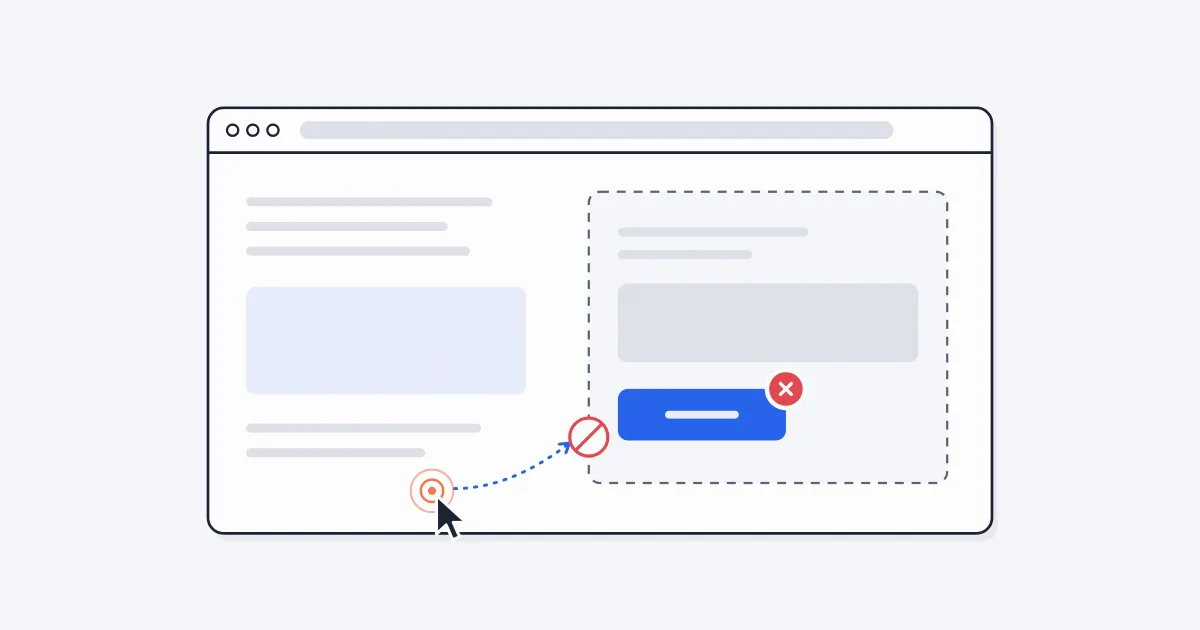
When an auto clicker is not working in Chrome, the cause is usually one of eight things: the site ignores scripted clicks, the target sits inside a frame from another site, you are on a Chrome page, the page reloaded, the element disappeared, the game limits click speed, the interval is too low, or the extension is blocked on that site. Some of these have a quick fix. Others are limits that no browser extension can get past.
This guide uses Simple Auto Clicker, the extension we make, as the example, but most causes apply to any browser auto clicker.
Before you work through the list, check three things:
What you see: blue pulses appear, but the page does nothing.
Browsers mark every click with a flag that says whether a real person made it. Clicks created by an extension are marked as not trusted. Some sites check this flag and ignore anything that is not a real mouse or touchpad click. Captchas are built to block automation on purpose.
Fix: none. No browser extension can produce trusted clicks, and none should get past a captcha. If the site ignores scripted clicks, it is telling you it wants a person there. Our guide on whether auto clickers are allowed explains why sites do this.
What you see: clicks work on the page, but not on an embedded game, video player or widget.
Many pages load content from other websites inside a frame, called a cross-origin iframe. Browser security keeps extensions on the main page from clicking inside frames from a different site.
Fix: sometimes. If the embedded game or tool has its own web address, open that page directly in its own tab and run the clicker there. If it does not, the extension cannot click it.
What you see: the popup shows an error when you press Start, or nothing happens.
Chrome does not let any extension run on its own pages. That includes Settings, the Extensions page, the Chrome Web Store, the new tab page and the built-in PDF viewer.
Fix: none for those pages. Auto clickers only work on regular websites.
What you see: the clicker was working, then stopped, and the pill is gone.
The clicking loop lives inside the page. When the page reloads, or when a click takes you to a new page, the old page is replaced and the loop ends with it. The tab also drops out of the popup's Running tabs list.
Fix: wait for the new page to finish loading, then open the popup and click Start again. If each click loads a new page, the clicker will stop after one click every time. That task needs a different kind of tool.
What you see: in Element mode, the clicker stops on its own after a while.
Element mode keeps clicking the element you picked even if the page layout shifts. If that element is removed from the page, for example when a button is replaced after it is clicked, the clicker stops instead of clicking something else by mistake.
Fix: pick the element again. If the page keeps swapping the button out, try Cursor mode and hold your pointer over the spot where the button appears.
What you see: the clicker runs, but the game counts fewer clicks than you set.
Some games limit how many clicks count per second, or ignore clicks that arrive too fast. Cookie Clicker is a good example: it counts scripted clicks at up to about 3 per second. At 50 ms you would send 20 clicks per second, and most of them would not count.
Fix: slow down. For Cookie Clicker, a 350 ms interval works well. Our Cookie Clicker setup guide has the tested settings. For other games, start at 250 ms and check whether each click registers before going faster.
What you see: you typed 10 or 1 in the interval field, but it is not clicking any faster.
Simple Auto Clicker's lowest interval is 50 ms, which is 20 clicks per second. Anything lower is raised to 50. Chrome's timers make faster speeds unreliable, so a lower number would not give you steady extra clicks anyway.
Fix: use 50 ms or more. To see what your setup really achieves, run the auto clicker mode in our CPS test. For the full explanation, read how fast an auto clicker can click.
A related case: if the tab is in the background, Chrome slows its timers to save power, so clicks come less often. Keep the tab visible for steady clicking.
What you see: the extension will not start on certain sites, or you cannot install or open it at all.
Chrome lets you turn extensions off for specific sites. Click the puzzle piece icon in the toolbar and check whether extensions are allowed on the current site. In Incognito, an extension only runs if you turn on "Allow in Incognito" on its details page (Extensions > Manage extensions > Details).
On a school or work device, the admin can block an extension completely or stop extensions from running on certain sites.
Fix: on your own device, allow the extension on the site. On a managed device, ask the admin. Please do not try to get around school or work policies.
Go back to basics:
If that works, the extension is fine and the problem is specific to the other site, most likely cause 1, 2 or 6. For a refresher on setup, see how to use an auto clicker in Chrome. If you do not have the extension yet, you can add it from the Simple Auto Clicker homepage.
Most likely the click loads a new page or reloads the current one, which ends the loop. In Element mode, it also stops if the clicked element disappears.
The game may check for real input, sit inside a frame from another site, or limit how many clicks count. Try a slower interval first, then check whether the game has its own page you can open directly.
No. Captchas exist to stop automated clicks, and Simple Auto Clicker does not try to get past them.
Chrome slows timers in tabs you cannot see. Keep the tab visible, for example in its own window, for steady clicking.
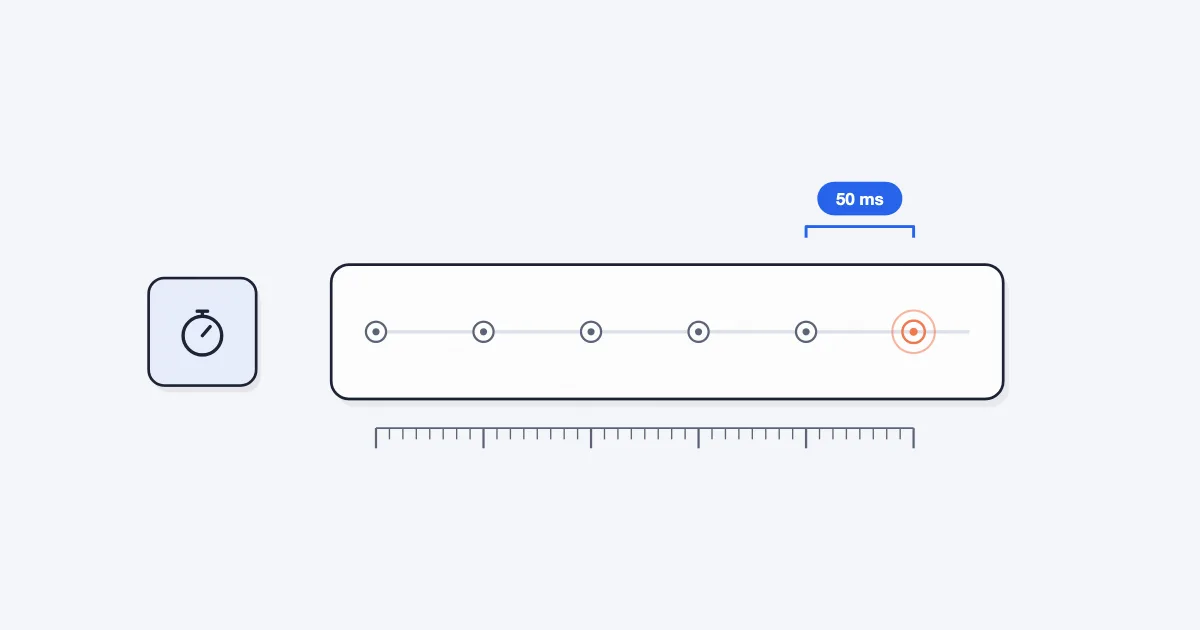
What limits auto clicker speed in Chrome, why Simple Auto Clicker stops at 50 ms, and how to measure the clicks per second you really get.
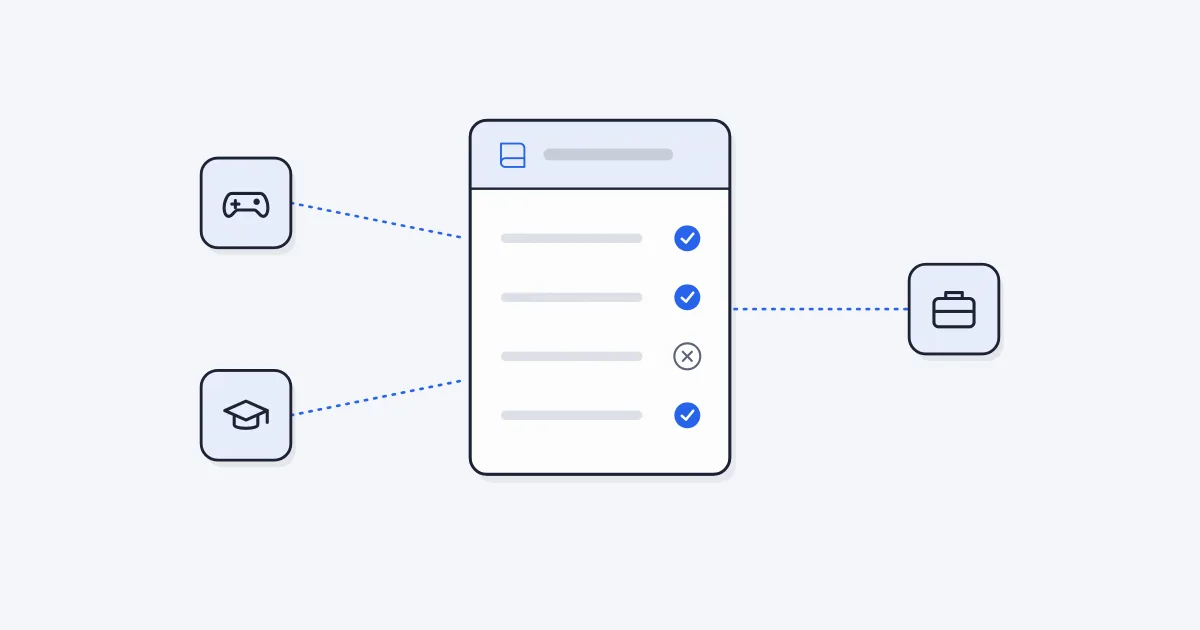
A practical guide to when auto clickers are fine and when they break the rules, for online games, single-player games, school devices and work tools.
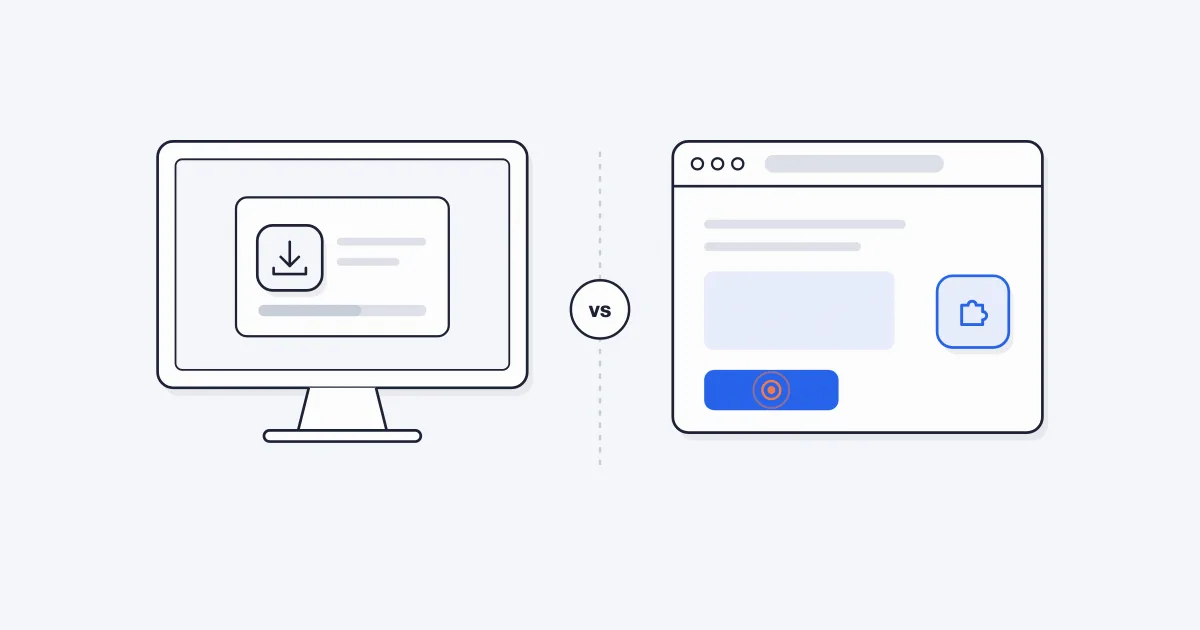
An honest comparison of desktop auto clicker apps and browser extensions for Windows PCs, with a simple way to decide which one you need.