
Auto Clicker Not Working? 8 Causes and Fixes
Eight real reasons a browser auto clicker stops working, how to spot each one, and which ones you can fix.
Chromebook
You can auto click on a Chromebook in two free ways, and neither one needs a download. ChromeOS has a built-in setting called Automatic clicks that clicks wherever your pointer stops. A Chrome extension can repeat clicks on a web page for as long as you want.
Use the built-in setting if you want hands-free clicking across the whole Chromebook. Use an extension if you need the same button on a web page clicked again and again.
| Method 1: ChromeOS automatic clicks | Method 2: Auto clicker extension | |
|---|---|---|
| What it does | Clicks once when your pointer stops moving | Repeats clicks at a set interval |
| Where to find it | Settings > Accessibility | Chrome Web Store |
| Install needed | No, it is built in | A small extension, no app download |
| Best for | Clicking without pressing the touchpad | Clicking one button many times |
Automatic clicks (also called dwell clicking) is part of ChromeOS. It was made for people who can move a pointer but find it hard to press a button. When you stop moving the pointer, a ring appears around it. When the ring closes, your Chromebook clicks whatever is under the pointer.
Google's own steps are in the Chromebook Help article Use automatic clicks on your Chromebook.
Once Automatic clicks is on, a few extra options appear under it:
A small menu appears at the bottom right of the screen. From there you can switch between left click, right click, double click, click and drag, and scroll. It also has a pause option, which is handy when you want to read without clicking anything.
Automatic clicks works everywhere on your Chromebook: web pages, Android apps, the file manager and the settings screens. That makes it a strong choice if pressing the touchpad hurts or is hard for you.
It is not a repeating clicker, though. It clicks once each time the pointer comes to rest. To click again, you move the pointer a little and let it settle. If you want a button clicked 500 times while you do something else, you need Method 2.
An auto clicker extension runs inside Chrome and clicks for you at a steady pace. Simple Auto Clicker is the one we make. It repeats left clicks on a web page at any interval from 50 ms, runs one independent loop per tab, and collects no data. It only asks for three permissions: activeTab, scripting and storage.
While it runs, a small pill at the bottom right of the page shows the mode and interval, and a soft blue pulse marks each click. To stop, click Stop on the pill, click Stop in the popup, or use the Stop button next to the tab in the popup's Running tabs list.
For a longer walkthrough with interval tips, see our guide on how to use an auto clicker in Chrome.
Element mode locks onto one thing on the page, such as a button. It keeps clicking that element even if the page layout shifts, and it stops by itself if the element disappears. This is the best choice for most tasks.
Cursor mode clicks wherever your pointer is on the page. Use it for games drawn on a canvas, where there is no separate button to pick.
| Feature | ChromeOS automatic clicks | Simple Auto Clicker extension |
|---|---|---|
| Repeats clicks by itself | No, one click per pointer stop | Yes, until you stop it |
| Where it works | Everywhere on the Chromebook | Regular web pages in Chrome tabs |
| Speed | Set by the delay, about once per second by default | Any interval from 50 ms |
| Click types | Left, right, double, drag, scroll | Left click only |
| Targets a page element | No | Yes, in Element mode |
| Works in Android apps | Yes | No |
| Needs an install | No | Yes, from the Chrome Web Store |
| Made for | Accessibility | Repetitive clicks on web pages |
Many people use both: automatic clicks for everyday navigation, and the extension for one repetitive job in a tab.
School Chromebooks are managed by the school's IT admin. The admin can block the Chrome Web Store, block single extensions, or allow only an approved list. If the Add to Chrome button is greyed out, or you see a message that your administrator has blocked the item, that is your school's policy at work. On some managed devices the admin controls accessibility settings too.
Please do not try to get around these blocks. They are part of your school's rules. If you need automatic clicking for an accessibility reason, ask your teacher or IT team. They can often turn on the built-in feature or approve a tool for you.
Also check whether auto clicking is allowed for what you want to do. A clicker game at home is one thing. Class work or a timed quiz is another. Our guide on whether auto clickers are allowed covers games, school and work rules.
The extension says it cannot run on this page. Chrome does not let extensions work on its own pages, such as Settings, the Chrome Web Store, the new tab page and the built-in PDF viewer. Open a regular website and try again.
Clicking stopped after the page reloaded. A reload or a move to a new page ends the loop. Wait for the page to finish loading, then click Start again.
Nothing happens inside an embedded game or video player. Content loaded in a frame from another website (a cross-origin iframe) cannot be clicked by the extension.
The site ignores the clicks. Some sites only accept trusted input from a real mouse or touchpad, and captchas are built to block automation. No browser extension can click those.
Clicking stopped on its own in Element mode. The element you picked disappeared from the page. Pick it again, or switch to Cursor mode.
Automatic clicks keeps clicking things by accident. Choose a longer delay before click, turn on Stabilize click location, or use the pause option in the action menu.
For more fixes, read why an auto clicker might not be working.
You have two options. Turn on Automatic clicks in Settings > Accessibility > Cursor and touchpad, or add an auto clicker extension from the Chrome Web Store. The built-in setting clicks when your pointer stops. The extension repeats clicks on a web page at the interval you choose.
Select the time at the bottom right, open Settings, choose Accessibility, then Cursor and touchpad, and turn on Automatic clicks. After that, rest your pointer on anything and it will be clicked after a short delay.
Yes. ChromeOS automatic clicks is built in, so there is nothing to download. Simple Auto Clicker is also free and installs as a small Chrome extension from the Web Store, not as an app or file download.
It depends on your school. Admins often limit which extensions students can add, and school rules may not allow auto clicking during class. If a tool is blocked, respect that and ask your teacher or IT team if you have a real need.
Simple Auto Clicker can click as often as every 50 ms, which is 20 clicks per second. Chrome's timers make faster speeds unreliable, and many games accept fewer clicks than that. Read how fast an auto clicker can click for the details, or measure it yourself with our CPS test.
The extension does not. It only clicks web pages inside Chrome tabs. ChromeOS automatic clicks works in Android apps, but it clicks once per pointer stop rather than repeating.
Eight real reasons a browser auto clicker stops working, how to spot each one, and which ones you can fix.
A side-by-side look at six auto clicker extensions for Chrome, what each one is good at, and how to choose. We make one of them.
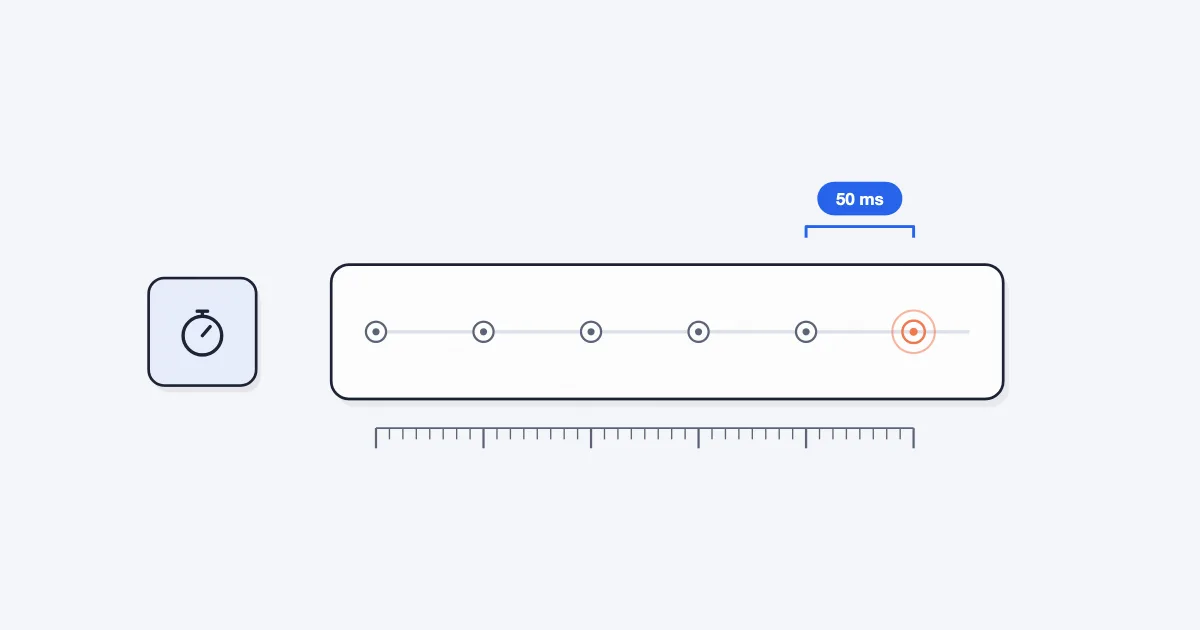
What limits auto clicker speed in Chrome, why Simple Auto Clicker stops at 50 ms, and how to measure the clicks per second you really get.